Image-Based OTA Update
Complete guide for Over-The-Air (OTA) updates on Jetson devices without requiring a host PC.
Overview
Image-based OTA update is a failsafe way to update JetPack version on a Jetson device by flashing a pre-generated image.
Benefits:
- ✅ Update without host connection
- ✅ Automated procedures possible
- ✅ Failsafe mechanism
- ✅ Suitable for remote deployments
Note: JetPack OS should not be broken for OTA to work.
Step 1: Download OTA Tool
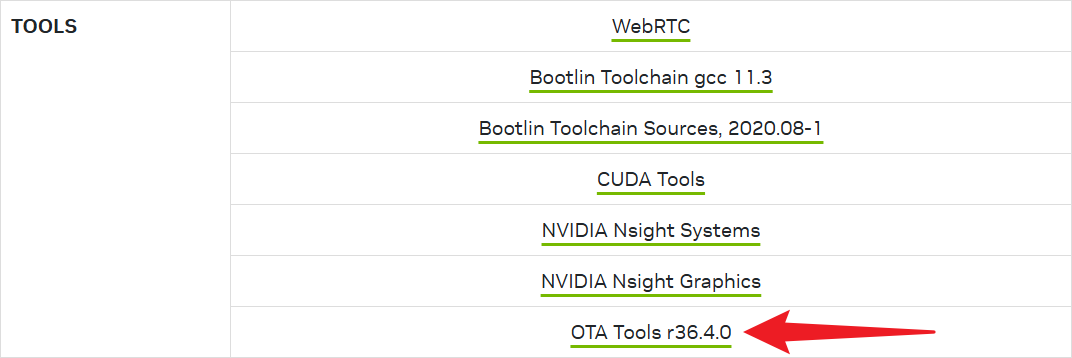
Download OTA tool from NVIDIA based on target JetPack version (e.g., JetPack 6.1 = r36.4.0).
Step 2: Prepare Host and BSP
Requirements:
- x86 device with Ubuntu 22.04+
- 256 GB storage
- Docker installed
sudo apt install docker.io -y
Follow wiki to download and compile BSP: AFE-R750 Wiki

Step 3: Install Dependencies in Container
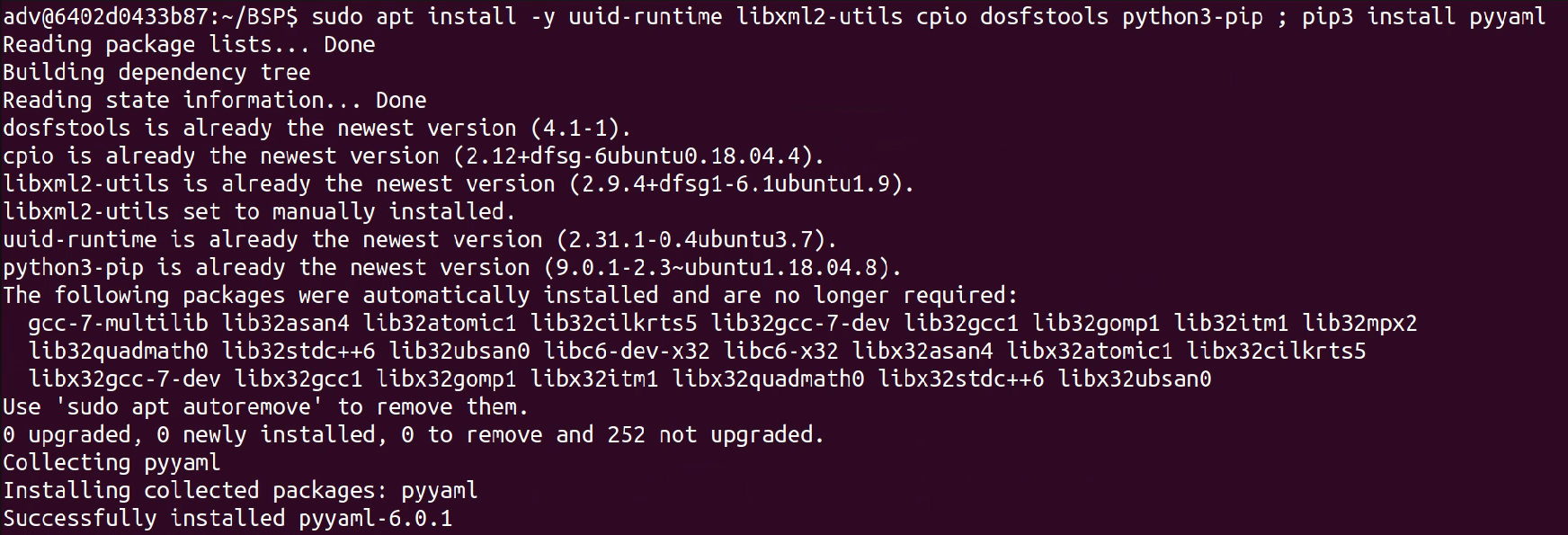
In order to build OTA package, container has to install some dependences by apt command.
sudo apt update
sudo apt install -y uuid-runtime libxml2-utils cpio dosfstools python3-pip
pip3 install pyyaml
Step 4: Setup Environment
Set BASE_BSP and TARGET_BSP to Linux_for_Tegra folder absolute path. If just reflash OS, both variable will be set to same path.
export BASE_BSP=/home/adv/BSP/jetson_linux_risc/Linux_for_Tegra
export TARGET_BSP=/home/adv/BSP/jetson_linux_risc/Linux_for_Tegra

Step 5: Setup OTA Tool
Put the OTA tool into $TARGET_BSP/../ which should be /home/adv/BSP/jetson_linux_risc/ and extract the OTA tool.
cd $TARGET_BSP/../
sudo tar xpf ota_tools_R36.4.0_aarch64.tbz2

Step 6: Build OTA Package
cd $TARGET_BSP/../
AGX Orin eMMC:
sudo -E ./tools/ota_tools/version_upgrade/l4t_generate_ota_package.sh jetson-agx-orin-devkit R36-4
AGX Orin NVMe:
sudo -E ./tools/ota_tools/version_upgrade/l4t_generate_ota_package.sh --external-device nvme0n1 jetson-agx-orin-devkit R36-4
Orin NX NVMe:
sudo -E ./tools/ota_tools/version_upgrade/l4t_generate_ota_package.sh --external-device nvme0n1 jetson-orin-nano-devkit R36-4
Build Time: ~3 hours
After the whole procedure is done, get OTA package: $TARGET_BSP/<target_board>/ota_payload_package.tar.gz
Due to the build command had defined where OS will be stored, the file name is recommended to rename and includes ModelName, JPSource, JPDest, Storage.
Renamed example: AFE-R750_JP6.1_to_JP6.1_AGX_NVMe.tar.gz
Step 7: Prepare Jetson Device
Get Pre-generate OTA Image
- Follow previous session to generate your own OTA package by target Jetson device BSP and OTA tool.
- Then put the OTA update package and OTA tool to Jetson device for doing reflash or upgrade.
Install Dependencies
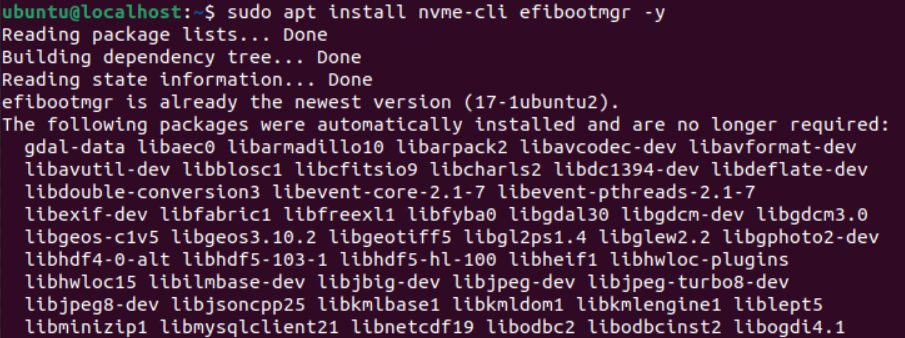
In order to do OTA update, AFE-R750 has to install two dependences by apt command.
sudo apt update
sudo apt install -y efibootmgr nvme-cli
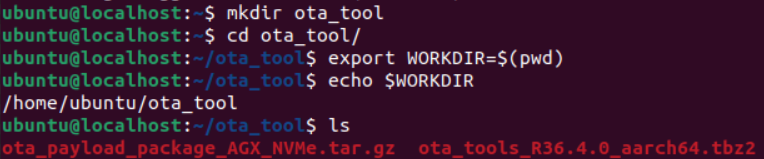
Setup WORKDIR
Create a ota_tool folder and put OTA tool and OTA image inside. Set the ota_tool absolute path as WORKDIR.
mkdir -p /home/ubuntu/ota_tool
export WORKDIR=/home/ubuntu/ota_tool
Setup OTA Tool
Extract the OTA tool in ota_tool folder. Create /ota folder and move OTA image into /ota.
cd /home/ubuntu/ota_tool
sudo tar xpf ota_tools_R36.4.0_aarch64.tbz2
sudo mkdir /ota
sudo mv `<your_ota_package.tar.gz>` /ota

Step 8: Trigger OTA Update
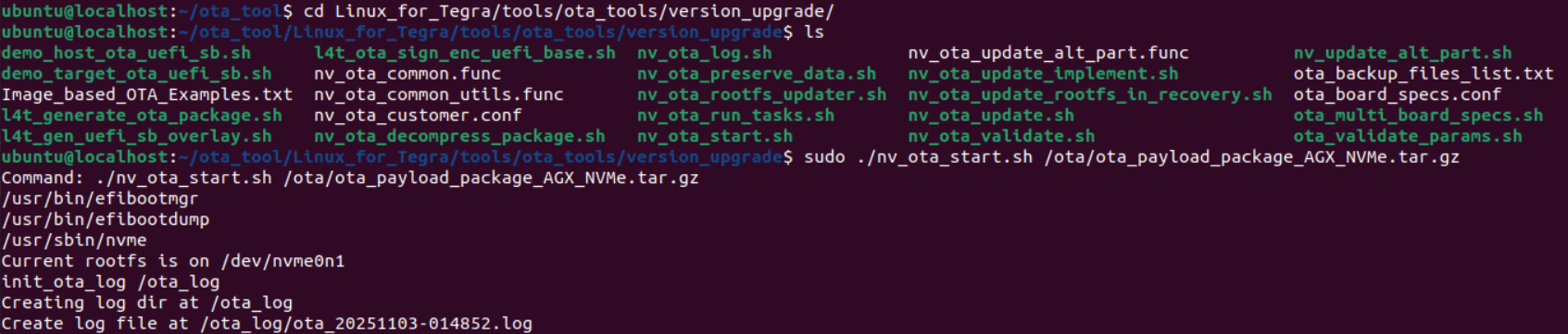
From WORKDIR go to OTA trigger script folder and Trigger the OTA update.
cd Linux_for_Tegra/tools/ota_tools/version_upgrade
sudo ./nv_ota_start.sh /ota/<your_ota_package.tar.gz>
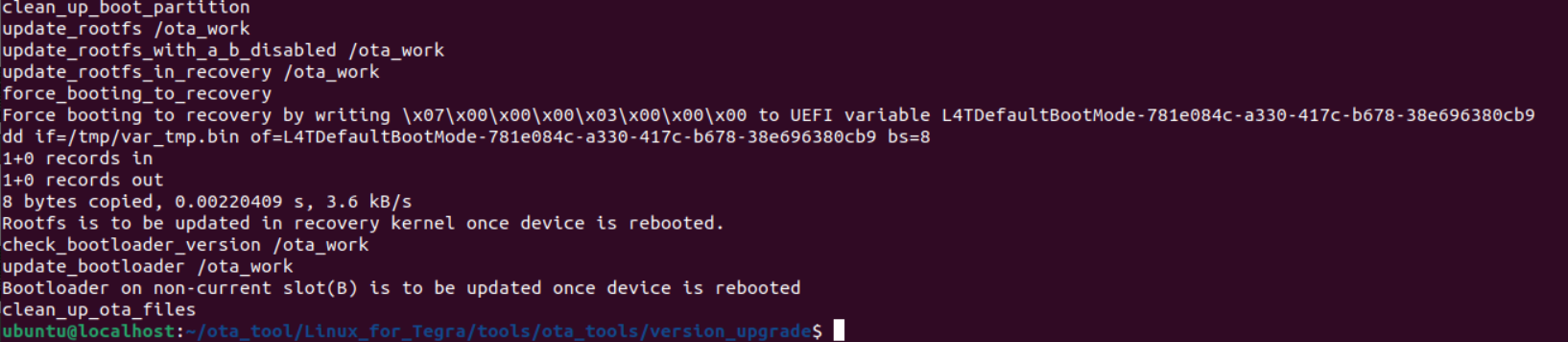
Step 9: Complete Update
After trigger finishes, reboot the system.
sudo reboot
Note: After reboot, device shows black screen for ~30 minutes. DO NOT power off.
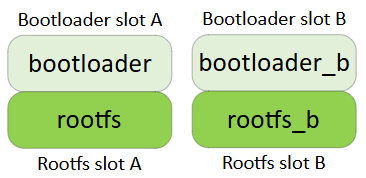
Integration with Redundancy
- If a Jetson device flash with redundancy function and currently boot up into slot A.
- Once OTA update is triggered, the slot B will be re-flash. Which means, if user want to re-flash or upgrade slot A, please switch to slot B first.