Rootfs A/B Redundancy
Complete guide to Rootfs A/B redundancy mechanism on NVIDIA Jetson devices.
Overview
Rootfs A/B Redundancy provides:
- ✅ System Redundancy: Two independent rootfs partitions (A and B)
- ✅ Automatic Fallback: Switches to backup on boot failure
- ✅ Seamless Updates: Update without affecting current operation
- ✅ Disaster Recovery: Automatic recovery on failure
Root File System Redundancy
Jetson Linux provides support for root file system redundancy on NVIDIA® Jetson Orin series.
It uses two root file systems:
- Rootfs A: Stored in the usual file system partition (APP)
- Rootfs B: Stored in a new partition (APP_b), located after APP on the disk
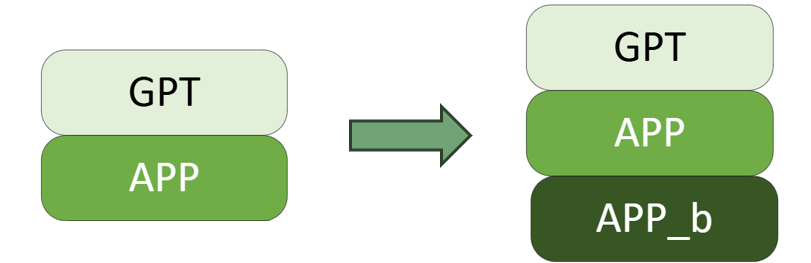
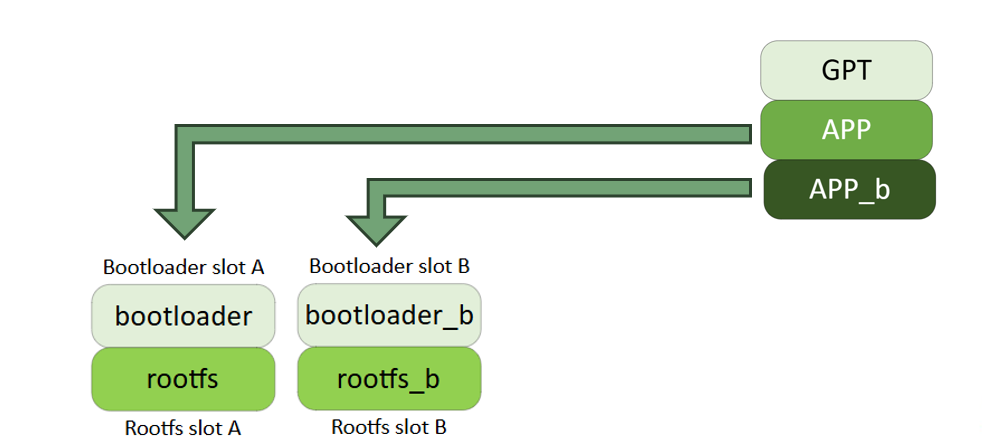
Each rootfs is independent and occupies a slot: "slot A" or "slot B".
- Bootloader A always boots with rootfs A
- Bootloader B always boots with rootfs B
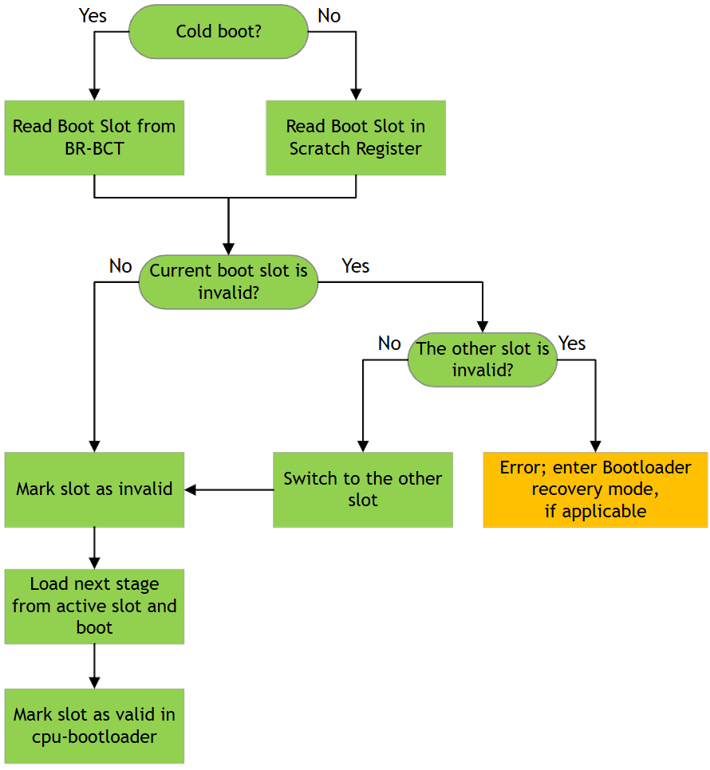
- Boot ROM retrieves the target slot number from either the BR-BCT or Scratch Registers.
- Load the corresponding Bootloader stages and boot to the assigned rootfs partition.
Implementation Guide
Step 1: Prepare Host
Prepare the following:
- ✅ X86 Host PC with Ubuntu 22.04 or later
- ✅ Disk Space: At least 256 GiB
- ⚠️ Do not use VM - Use physical PC
- ✅ USB Cable: Type-A to Type-C
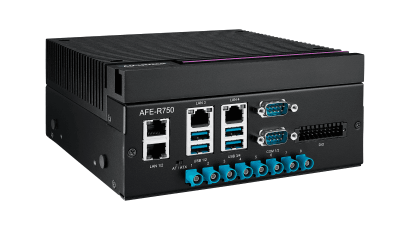
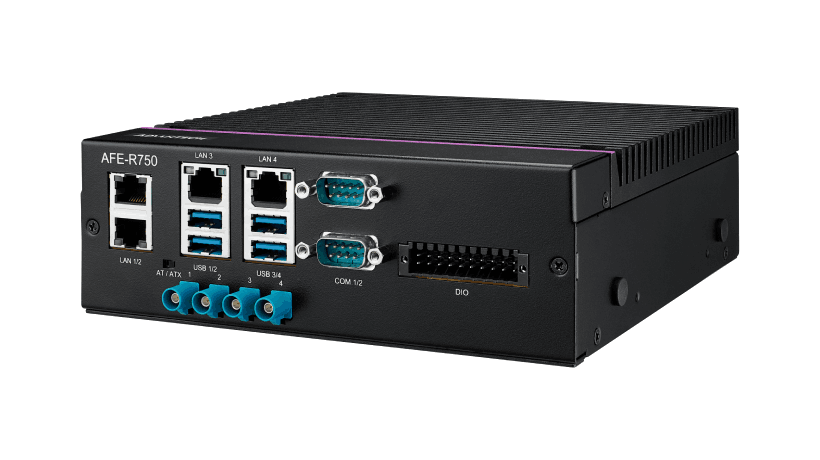
- ✅ Jetson Device: AFE-R750 example
Step 2: Prepare Image on Host
Download Image:
- Download the image from AFE-R750/ASR-A701 image download page
- Use sudo permission to extract:
sudo tar zxf AFE-R750_*.tar.gz
Important Notes:
- ❌ Do NOT use
root#or mouse to extract - ✅ Download the same JetPack image version as on Jetson device
Step 3: Install Pre-requisites
sudo usermod -aG dialout $USER
sudo apt update
sudo ./Linux_for_Tegra/tools/l4t_flash_prerequisites.sh
sudo reboot
Step 4: Get Storage Parameters
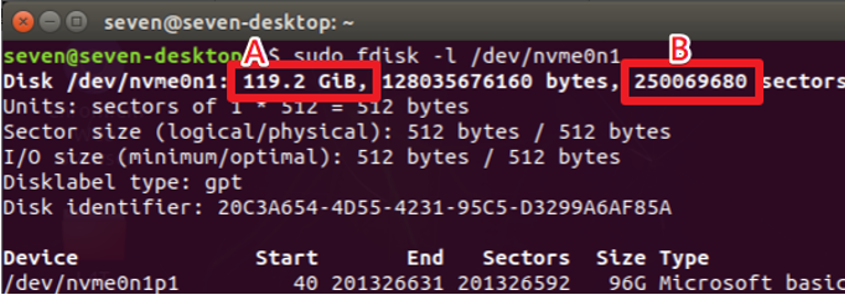
sudo fdisk -l /dev/nvme0n1
Example:
- Storage_real_size: 119.2 GB
- Sectors_number: 250069680
Step 5: Modify Config File
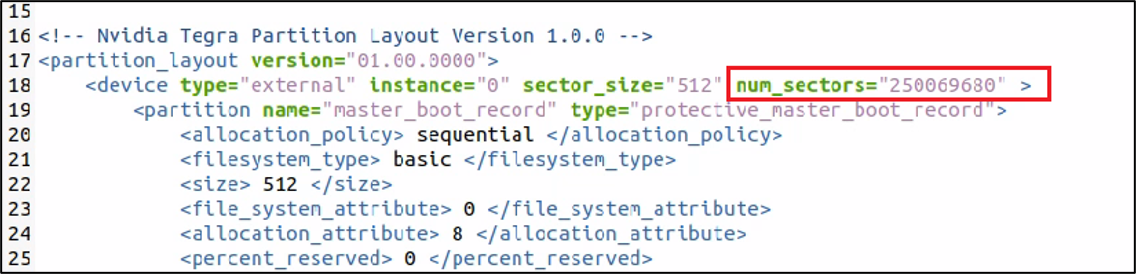
sudo gedit Linux_for_Tegra/tools/kernel_flash/flash_l4t_t234_nvme_rootfs_ab.xml
Set num_sectors to Sectors_number.
Step 6: Put Device in Recovery Mode
-
Shutdown Jetson device
-
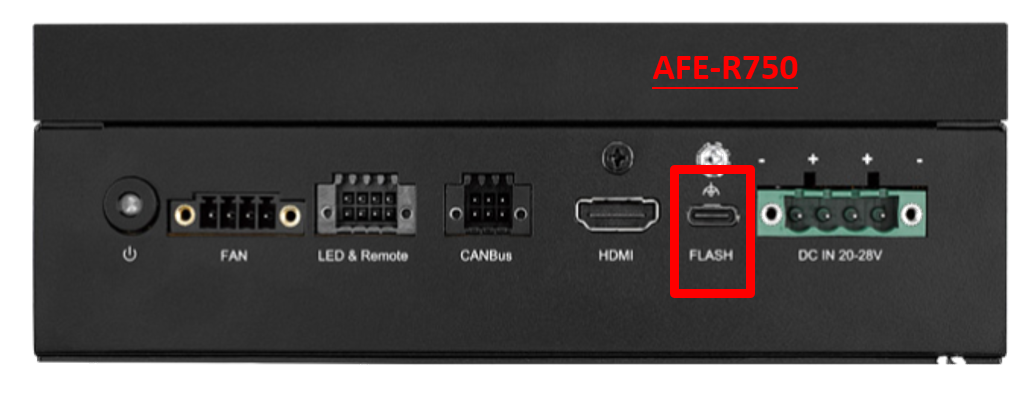
Connect USB to FLASH port
-
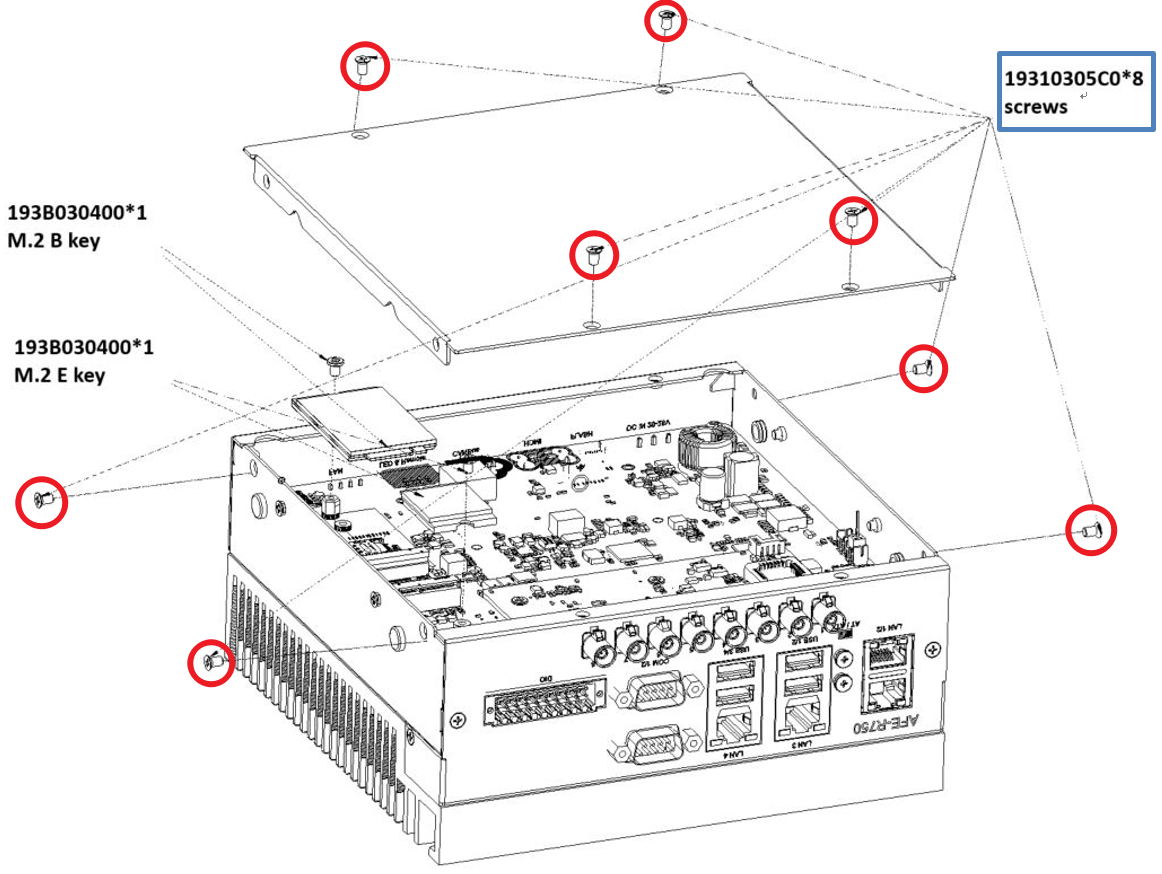
Open bottom cover
-
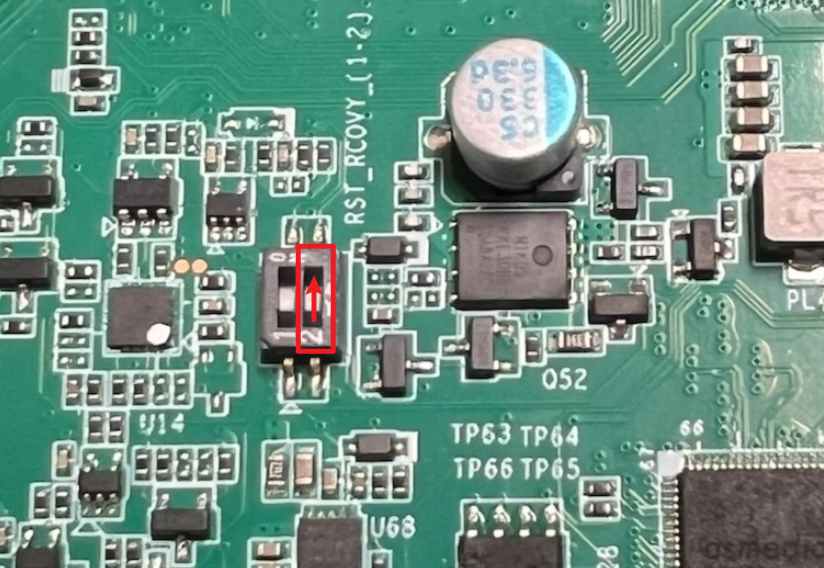
Set RST_RCOVY pin 2 to ON
-
Press power button
Step 7: Verify Connection
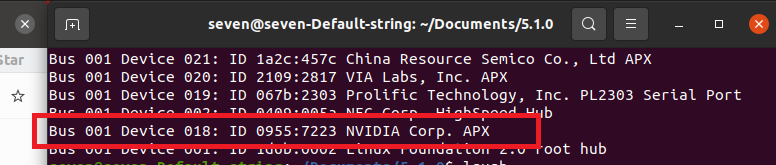
On Host, open terminal and execute:
lsusb
Verify that AFE-R750 is detected in recovery mode.
Step 8: Flash Image with Redundancy
cd Linux_for_Tegra
AGX Orin eMMC:
sudo ROOTFS_AB=1 ROOTFS_RETRY_COUNT_MAX=1 ./flash.sh jetson-agx-orin-devkit mmcblk0p1
AGX Orin NVMe: Adjust the -S parameter based on the SSD volume
sudo ROOTFS_AB=1 ROOTFS_RETRY_COUNT_MAX=1 ./tools/kernel_flash/l4t_initrd_flash.sh \
  --external-device nvme0n1p1 \
  -c tools/kernel_flash/flash_l4t_t234_nvme_rootfs_ab.xml \
  -p "-c bootloader/generic/cfg/flash_t234_qspi.xml" \
  -S '<58GiB>' \
  --showlogs \
  --network usb0 \
  jetson-agx-orin-devkit \
  nvme0n1p1
Orin NX NVMe:
sudo ROOTFS_AB=1 ROOTFS_RETRY_COUNT_MAX=1 ./tools/kernel_flash/l4t_initrd_flash.sh \
  --external-device nvme0n1p1 \
  -c tools/kernel_flash/flash_l4t_t234_nvme_rootfs_ab.xml \
  -p "-c bootloader/generic/cfg/flash_t234_qspi.xml" \
  -S `<58GiB>` \
  --showlogs \
  --network usb0 \
  jetson-orin-nano-devkit \
  internal
Note: Half of Storage_real_size (integer only).
- 119.2 / 2 = 58.6 → 58 GiB
Step 8: Check Redundancy Function
sudo nvbootctrl -t rootfs dump-slots-info
sudo nvbootctrl -t rootfs set-active-boot-slot `1`
sudo reboot
After reboot, check slot info again - Rootfs has changed.