1 產品介紹
AFE‑R750 是採用 ASR‑A701 作為主機板。
本文件將說明如何在 JetPack 6.1 環境下使用 AFE-R750/ASR-A701。
| 型號名稱 | AFE-R750-X2A1U | AFE-R750-X1A1U | AFE-R750-M1A1U |
|---|---|---|---|
| SoC | AGX Orin 32G | AGX Orin 64G | Orin NX 16G |
| AI 運算能力 | 275 TOPS | 200 TOPS | 100 TOPS |
| 記憶體 | 64 GB | 32GB | 16GB |
| 作業系統儲存空間 | 64GB eMMC 或 NVMe | 64GB eMMC 或 NVMe | 僅支援 NVMe |
| 作業系統 | Ubuntu 22.04 JetPack 6.1 | ||
1-1 產品特色
- AMR AI 控制器板卡,最高可提供 275 TOPS AI 運算能力
- 提供 AMR 專用 I/O:4 個 GbE、2 個 COM、DIO、CANFD
- 可連接攝影機、LiDAR、IMU 等感測器
- 支援 Ubuntu 22.04、JetPack 6.1 SDK
- 通過 IEC 61000-6-4 重工業認證
- 支援 Advantech Robotic Suite
1-2 官方網站
2 機構與環境規格
2-1 外觀配置與尺寸
- AFE-R750-X 系列(AGX Orin)
- AFE-R750-M 系列(Orin NX)
- ASR-A701(mini-ITX)


2-2 散熱解決方案
風扇套件產品編號為 AMK-A0057,適用於 AGX Orin 64G 在 MAXN 電源模式下使用。
風扇套件的安裝方式如下圖所示,智慧風扇設定如下表。
註:「Caution - Hot surface. Do Not Touch」(小心高溫表面,請勿觸摸)警示為 NVIDIA 的預設設定,使用者可依照官方文件說明調整此設定。
https://docs.nvidia.com/jetson/archives/r36.4.3/DeveloperGuide/SD/PlatformPowerAndPerformance/JetsonOrinNanoSeriesJetsonOrinNxSeriesAndJetsonAgxOrinSeries.html#configuring-a-thermal-zone-using-the-device-tree

| 溫度(℃) | 風扇 PWM 值 | 風扇 RPM 值 |
|---|---|---|
| 0 | 66 | 3123 |
| 39 | 66 | 3123 |
| 63 | 77 | 3600 |
| 86 | 212 | 10000 |
| 92 | 212 | 10000 |
| 93 | 255 | 12000 |
| 105 | 255 | 12000 |
3 硬體介面介紹
3-1 開關與跳線
請參考下圖了解開關與跳線的設定方式。
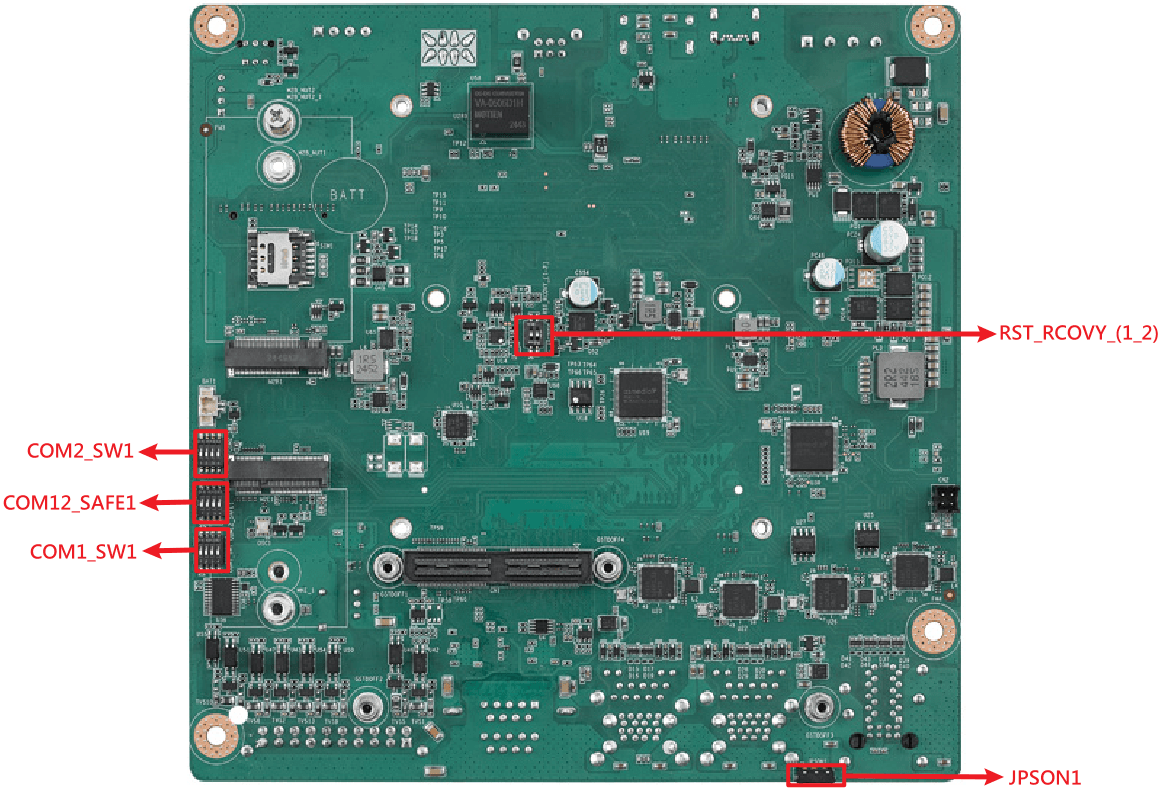
| 名稱 | 說明 |
|---|---|
| RST_RCOVY_(1_2) | 系統重啟與系統映像檔還原,用於燒錄映像檔時使用。 |
| COM12_SAFE1 | 啟用或停用 RS-422/RS-485 的故障保護功能。 |
| COM1_SW1 | 用於選擇 COM1 的 RS-232/RS-422/RS-485 模式,詳細說明請參考 COM 章節。 |
| COM2_SW1 | 用於選擇 COM2 的 RS-232/RS-422/RS-485 模式,詳細說明請參考 COM 章節。 |
| JPSON1 | 用於選擇 AT 或 ATX 模式的開關。 |
3-2 連接器介紹
請參考下圖了解各 IO 連接器,接腳定義的詳細說明可參考 AFE-R750 使用者手冊。

| 項目 | 名稱 | 說明 |
|---|---|---|
| 1 | DCIN1 | DC IN 電源接口 |
| 2 | OTG1 | Type-C(僅供燒錄映像檔使用) |
| 3 | HDMI1 | HDMI 顯示輸出 |
| 4 | CAN1 | CAN BUS 介面 |
| 5 | REMOTE1 | 遠端控制接口 |
| 6 | SYS_FAN1 | 機殼風扇接口 |
| 7 | PWRBTN1 | 電源按鈕 |
| 8 | CPU_FAN1 | 內部風扇接口 |
| 9 | NVME1 | M.2 M-Key 接口 |
| 10 | LAN1/2 | 2 個乙太網路 RJ-45 接口 |
| 11 | LAN3_USB12 | RJ-45 與 2 個 USB 3.2 Gen2 接口 |
| 12 | LAN4_USB34 | RJ-45 與 2 個 USB 3.2 Gen2 接口 |
| 13 | COM12 | 2 個 COM DP9 接口 |
| 14 | GPIO1 | GPIO 16 位元隔離接口 |
| 15 | M2E1 | M.2 E-Key 接口 |
| 16 | M2B1 | M.2 B-Key 接口 |
| 17 | CN1 | GMSL MIPI-120 pin 接口 |
| 18 | CN2 | GMSL 板電源接口 |
| 19 | SIM1 | SIM 卡插槽 |
4 作業系統
4-1 映像檔發布說明
- JetPack 6.2
- JetPack 6.1
| 映像檔版本 | 發布日期 | 映像檔下載 | BSP 下載標籤 | 備註 |
|---|---|---|---|---|
| JetPack6.2_v8_RT | 2026-06-17 | Onedrive | afer750a1_ubuntu22.04-jp6.2_v8.0.0_kernel-5.15.148_agx-orin+orin-nx.xml | 內建即時核心(real-time kernel) |
| 映像檔版本 | 發布日期 | 映像檔下載 | BSP 下載標籤 | 備註 |
|---|---|---|---|---|
| JetPack6.1_v7 | 2026-02-11 | Dropbox | afer750a1_ubuntu22.04-jp6.1_v7.0.0_kernel-5.15.148_agx-orin+orin-nx.xml | 修正 orin nx com 順序 修正 bmi088 GMSL 問題 預先安裝 SUSI 設定 wifi179 170 安裝腳本 |
| JetPack6.1_v4 | 2025-09-23 | Dropbox | afer750a1_ubuntu22.04-jp6.1_v4.0.0_kernel-5.15.148_agx-orin+orin-nx.xml | 修正自動更新版本問題 |
4-2 燒錄映像檔
請參考線上文件 Flash JetPack 6.X to AFE-R750,內含將 JetPack 燒錄至 AFE-R750 的詳細操作說明。
4-3 BSP 下載
請參考線上文件以取得下載並建置 AFE-R750 BSP 的詳細操作說明。
JetPack 6.2 BSP
JetPack 6.1 BSP(可使用 GMSL 攝影機,詳細說明請參考第 5-8 節)
5 操作方式
5-1 帳號與密碼
AFE-R750 的預設帳號與密碼皆為 ubuntu。
使用者可執行以下指令變更預設的 root 及 ubuntu 的密碼。
$ sudo passwd root
$ sudo passwd ubuntu
5-2 控制器區域網路(CAN)
AFE-R750 提供 1 組(Orin NX)或 2 組(AGX Orin)CAN FD,最高支援 3.7M 資料傳輸速率,詳細資訊可參考 NV Developer Guide。
CAN 接腳定義如下圖所示,請參考以下指令使用 CAN bus。

載入 CAN 相關模組,並將 CAN0 及 CAN1 的傳輸速率設定為 1Mbps。
$ sudo modprobe can
$ sudo modprobe can-dev
$ sudo modprobe mttcan
$ sudo ip link set can0 down
$ sudo ip link set can1 down
$ sudo ip link set can0 up type can bitrate 1000000 dbitrate 1000000 fd on
$ sudo ip link set can1 up type can bitrate 1000000 dbitrate 1000000 fd on
CAN port 1 使用 can-utils 接收 CAN 訊息。
$ sudo candump can1在另一個終端機視窗,CAN port 0 使用 can-utils 傳送 CAN 訊息。
$ sudo cansend can0 123#123412345-3 遠端控制與除錯埠
REMOTE1 連接器可讓使用者控制 AFE-R750 的電源狀態,並透過 RS-232 取得系統除錯紀錄。
接腳定義如下圖所示。
若 PWRBTN# 短接至 GND,系統會收到開機訊號;若 SYS_RST_IN_N 短接至 GND,系統會收到重啟訊號。
將 COM3_TXD 與 COM3_RXD 連接至主機端的 RS-232 COM 埠並設定 115200 鮑率,主機即可以取得 AFE-R750 的除錯紀錄。

5-4 通訊埠(COM)
COM 接腳定義如下圖所示。
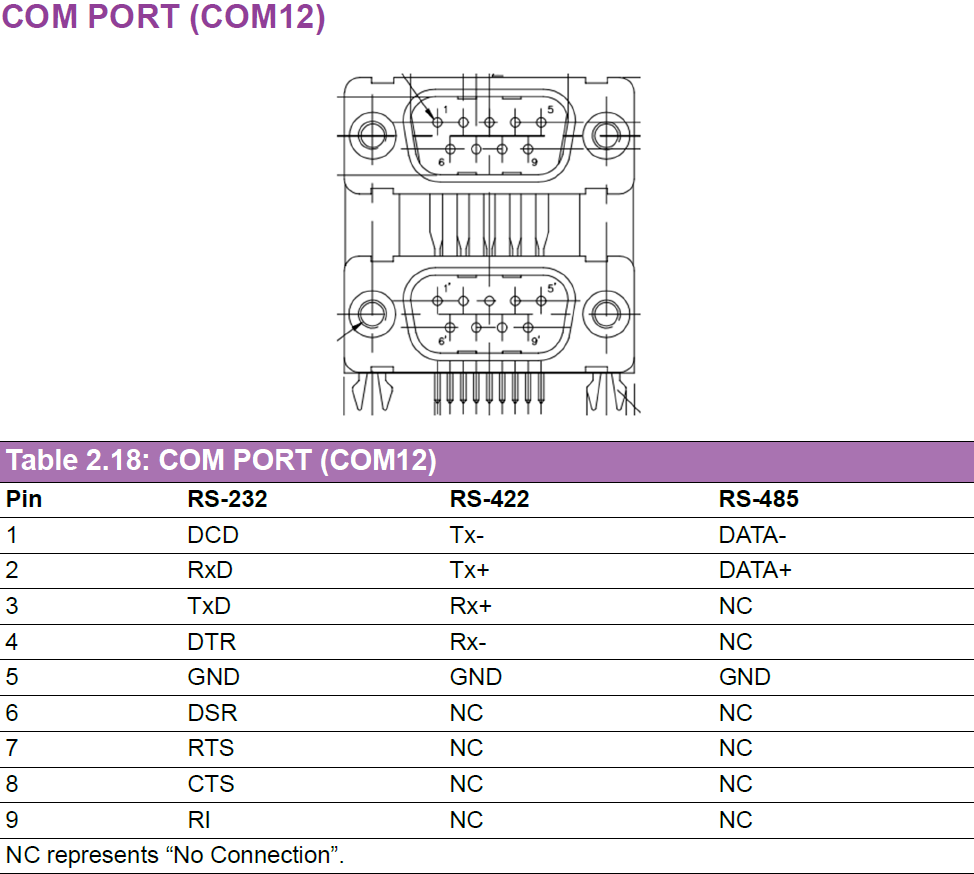
模式選擇方式如下圖所示。
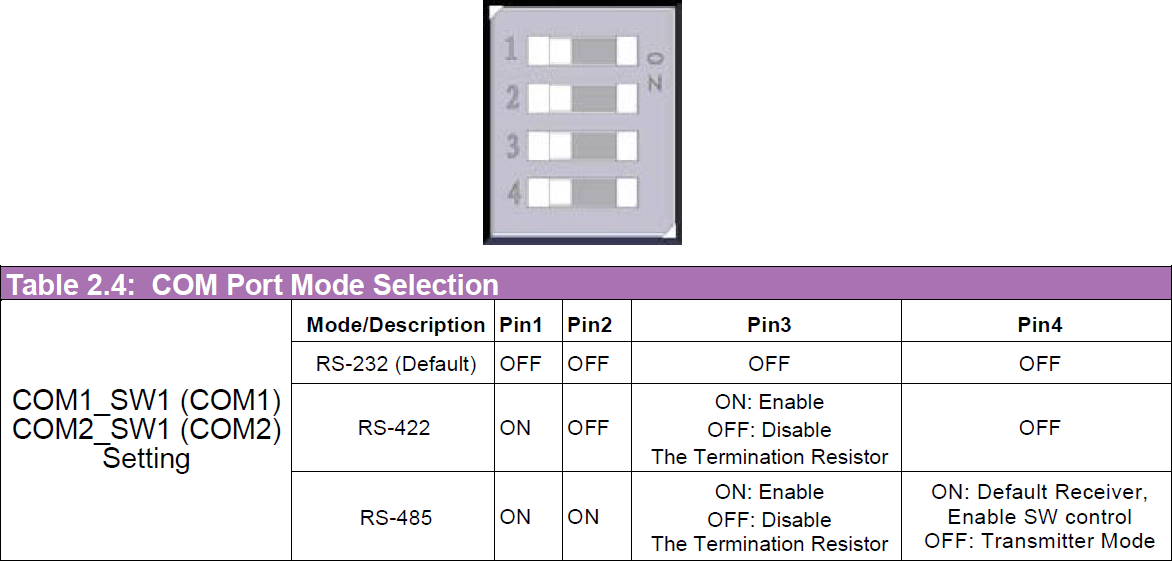
若 SW1 第 4 腳設為 ON,RS-485 即為接收模式,一旦流量控制腳拉高即會切換為傳送模式。
| SoC | COM1(RS-485 流量控制接腳) | COM2(RS-485 流量控制接腳) |
|---|---|---|
| AGX Orin | /dev/ttyTHS1(gpiod 中為 112) | /dev/ttyTHS2(gpiod 中為 129) |
| Orin NX | /dev/ttyTHS2(gpiod 中為 120) | /dev/ttyTHS1(gpiod 中為 112) |
- RS-232
- RS-422
- RS-485
在 RS-232 模式下,將 COM1 Tx 接至 COM2 Rx、Rx 接至 COM2 Tx,並將 COM_SW1 全部 4 個接腳設為 OFF。
以下指令會將資料從 ttyTHS1 傳送至 ttyTHS2,使用 echo 指令進行傳送、cat 指令進行接收。
第一個終端機(/dev/ttyTHS2 接收資料):
$ sudo su
# stty -F /dev/ttyTHS1 115200 raw -echo
# stty -F /dev/ttyTHS2 115200 raw -echo
# cat /dev/ttyTHS2
第二個終端機(/dev/ttyTHS1 傳送資料):
$ sudo su
# echo "1234" > /dev/ttyTHS1
在 RS-422 模式下,將 COM1 Tx+ 接至 COM2 Rx+、Tx- 接至 COM2 Rx-、Rx+ 接至 COM2 Tx+、Rx- 接至 COM2 Tx-,並將 COM_SW1 第 1 腳設為 ON,其餘設為 OFF。
以下指令會將資料從 ttyTHS1 傳送至 ttyTHS2,使用 echo 指令進行傳送、cat 指令進行接收。
第一個終端機(/dev/ttyTHS2 接收資料):
$ sudo su
# stty -F /dev/ttyTHS1 115200 raw -echo
# stty -F /dev/ttyTHS2 115200 raw -echo
# cat /dev/ttyTHS2
第二個終端機(/dev/ttyTHS1 傳送資料):
$ sudo su
# echo "1234" > /dev/ttyTHS1
在 RS-485 模式下,將 COM1 data- 接至 COM2 data-、data+ 接至 COM2 data+。
若 COM_SW1 設為傳送端,則無法接收資料;設為接收端,則無法傳送資料。
若設為軟體控制,每個 COM 埠皆有各自的 GPIO 接腳可控制流量控制,傳送資料前需先將該 GPIO 接腳拉高。
第一個終端機(/dev/ttyTHS2 接收資料):
$ sudo su
# stty -F /dev/ttyTHS1 115200 raw -echo
# stty -F /dev/ttyTHS2 115200 raw -echo
# cat /dev/ttyTHS2
第二個終端機(/dev/ttyTHS1 傳送資料):
$ sudo su
# gpioset 0 112=1
# echo "1234" > /dev/ttyTHS1
# kill $!
5-5 數位輸入 / 輸出(DIO)
AFE-R750 提供 8 位元 DI 與 8 位元 DO,所有 DO 皆採用開集極(open-drain)硬體設計,需要外部電源及提升電阻(pull-up resistor)。
DIO 接腳定義如下圖所示,請參考以下指令了解 DIO 的使用方式及硬體連接範例。
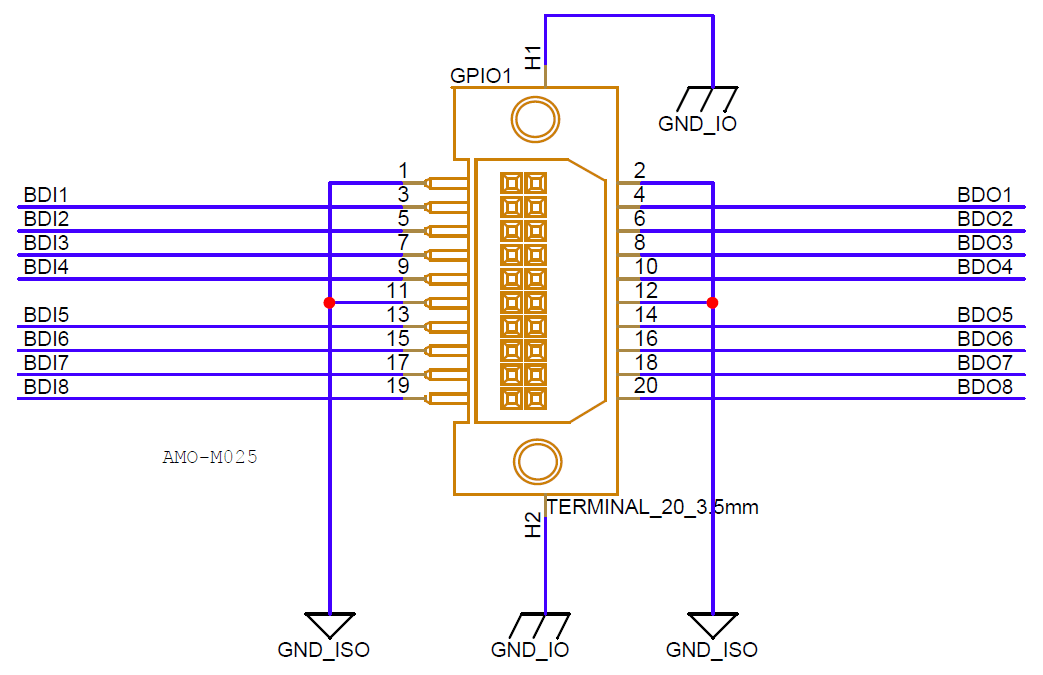
共 16 位元的 DIO 皆位於 gpiochip2 群組中,第 0 至 7 條線為 DI,第 8 至 15 條線為 DO。
$ sudo gpioinfo透過 gpioget 指令搭配晶片編號與線路編號,讀取 DI 電位,例如讀取 DI0 電位。
$ sudo gpioget 2 0透過 gpioset 指令搭配模式、晶片編號、線路編號及電位,設定 DO 電位,例如將 DO0 設為高電位。
$ sudo gpioset 2 8=1DIO 硬體連接範例如下圖所示。
- 當 DO0 設為低電位時,MOSFET 導通,電流會流經 LED。
- 當 DO0 設為高電位時,MOSFET 關閉,LED 熄滅。
- 若按下開關,DI0 可讀取到低電位。
- 若放開開關,DI0 會透過提升電阻讀取到高電位。

注意:外部電源供應電壓 V 允許範圍為 5 至 28V,流入 DO 的電流須小於 1A。
5-6 無線通訊模組
5-6-1 5G 模組
AFE-R750 支援 AIW-357(M.2 Key-B)5G 模組,開機前請先插入 Nano-SIM 卡。
請依照 AIW-Tool 使用者指南 設定 AIW-357 模組,AIW-Tool 可於 /usr/local/bin/AIW-357 中找到。
5-6-2 Wi-Fi 與藍牙模組
AFE-R750 支援兩種 Wi-Fi 模組,一為 AIW-170,另一為 EWM-W179。
兩種模組的驅動程式皆已整合於 AFE-R750 映像檔中。
同一時間僅能安裝一種 WiFi 驅動程式,安裝新的驅動程式會取代舊的驅動程式。
AIW-170
- JetPack 6.1 20260211(V7)
- JetPack 6.1 20250923(V4)
執行以下指令一次,AIW-170 驅動程式便會在系統開機後自動安裝並載入。
$ cd /usr/local/bin/AIW-170
$ sudo bash install_aiw-170.sh
$ sudo reboot
每次系統開機時執行以下指令以載入 AIW-170 驅動程式。
$ cd /usr/local/bin/AIW-170
$ sudo insmod btbcm.ko
$ sudo insmod btintel.ko
$ sudo insmod btqca.ko
$ sudo insmod btrtl.ko
$ sudo insmod btusb.ko
$ sudo modprobe cfg80211
$ sudo insmod wlan_cnss_core_pcie.ko
$ sudo insmod wlan.ko
EWM-W179
- JetPack 6.1 20260211(V7)
- JetPack 6.1 20250923(V4)
執行以下指令一次,EWM-W179 驅動程式便會在系統開機後自動安裝並載入。
$ cd /usr/local/bin/EWM-W179
$ sudo bash install_ewm-w179.sh
$ sudo reboot
每次系統開機時執行以下指令以載入 EWM-W179 驅動程式。
$ cd /usr/local/bin/EWM-W179
$ sudo modprobe cfg80211
$ sudo insmod rtk_btusb.ko
$ sudo insmod 8852be.ko
5-6-3 GPS 與 PPS 時間同步
AFE-R750 可安裝 AIW-210XU-001 GNSS 模組,以取得 PPS(每秒脈衝,pulse per second)訊號供應用程式進行時間同步,PPS 訊號如下圖所示。

請參考以下指令安裝 GPS 及 PPS 時間同步所需的相關工具。
$ sudo apt install -y gpsd gpsd-clients chrony
$ sudo echo -e START_DAEMON="true""\n"DEVICES="/dev/ttyACM0 /dev/pps0""\n"GPSD_OPTIONS="-n""\n"BAUDRATE="9600" > /etc/default/gpsd
$ sudo systemctl restart gpsd
$ sudo echo -e refclock SHM 0 refid NMEA offset 0.9999 delay 0.2 noselect"\n"refclock PPS /dev/pps0 lock NMEA refid PPS prefer"\n"makestep 0.001 10 > /etc/chrony
$ sudo systemctl restart chrony
將 GPS 天線放置於戶外,並開啟 xgps 工具檢查 GPS 狀態,直到顯示 3D 定位(3D fixed)為止。

檢查 chrony 來源以確認 PPS 已作為時間來源使用,當時間誤差超過 1ms 門檻值時,系統時間便會與 PPS 時間同步。
$ watch -n 0.1 chronyc sources5-7 慣性測量單元(IMU)
AFE-R750 支援兩種 IMU 感測器,一為內建的 BMI088,另一為選配的 MTi-3。
為了將 IMU 資料連接至 ROS2,我們需要先安裝相關的 SDK 及套件。
$ sudo apt install -y ros-humble-rviz2 ros-humble-imu-tools ros-humble-imu-filter-madgwick pre-commit ros-humble-nmea-msgs ros-humble-mavros-msgs5-7-1 BMI088
- JetPack 6.1 20260211(V7)
- JetPack 6.1 20250923(V4)
BMI088 驅動程式已預設整合於 JetPack 6.1 中,請參考以下指令取得 BMI088 的加速度計與陀螺儀資料。
$ sudo su
# /usr/local/bin/IMU/iio_generic_buffer -a -c 10 --device-name accelerometer -g
# /usr/local/bin/IMU/iio_generic_buffer -a -c 10 --device-name gyroscope -g
確認 BMI088 運作正常後,再安裝其 ROS2 套件,即可以在 rviz2 中查看 IMU 的資料。
$ wget https://iedgeblob.blob.core.windows.net/robotic-suite-public/sensor/xsens_bmi088-node-1.0.0-humble-imx8.run
$ chmod +x xsens_bmi088-node-1.0.0-humble-imx8.run
$ sudo ./xsens_bmi088-node-1.0.0-humble-imx8.run
$ source /opt/ros/humble/setup.bash
$ source /usr/local/Advantech/ros/humble/sensor_extension/ros2-imu-bmi088/install/setup.bash
$ sudo chown -R ubuntu /dev/iio:device*
$ sudo chown -R ubuntu /sys/devices/platform/bus@0/c240000.i2c/i2c-1/1-0068/iio:device*
$ ros2 run ros2_bmi088 ros2_bmi088 &
$ ros2 run imu_filter_madgwick imu_filter_madgwick_node --ros-args -p use_mag:=false &
$ rviz2
在 rviz2 中點選 Add,選擇 By topic,加入 /imu/data 主題,並將 Fixed Frame 改為 imu_link,即可查看 IMU 資料。

V4 映像檔之前的版本尚未整合 BMI088 驅動程式,若要使用 BMI088,請重新燒錄為 JetPack 6.1 V7 映像檔。
5-7-2 MTi-3
MTi-3 IMU 感測器安裝於 AFE-RM04-4PA1 或 AFE-RM04-8PA1 的 GMSL 板上,但僅支援 AFE-R750-X 系列(AGX Orin 模組)。

安裝感測器後,請依照以下步驟在 rviz2 中查看視覺化資料,更多詳細資訊可參考 官方 GitHub。
$ cd ~
$ git clone --branch ros2 https://github.com/xsenssupport/Xsens_MTi_ROS_Driver_and_Ntrip_Client.git
$ mv Xsens_MTi_ROS_Driver_and_Ntrip_Client ros2_ws
$ cd ~/ros2_ws
$ colcon build --symlink-install
編輯 ~/ros2_ws/install/xsens_mti_ros2_driver/share/xsens_mti_ros2_driver/param/xsens_mti_node.yaml,將 scan_for_devices 設為 false、port 設為 /dev/ttyTHS3、baudrate 設為 115200。

$ sudo chmod 777 /dev/ttyTHS3
$ sudo stty -F /dev/ttyTHS3 115200 -echo
$ source /opt/ros/humble/setup.bash
$ source ~/ros2_ws/install/setup.bash
$ ros2 launch xsens_mti_ros2_driver display.launch.py
5-8 攝影機解決方案
AFE-R750 已將 oToBrite oToCAM222 驅動程式整合於映像檔中,請參考以下指令使用 oToCAM222。
AFE-R750 也支援其他 GMSL 攝影機,例如 Orbbec Gemini-335LG 及 StereoLabs ZedX,詳細說明請參考 AFE-R750 GMSL 驅動程式。
注意:搭載即時核心(real-time kernel)的 JetPack 6.2 不支援 GMSL 攝影機,因驅動程式與即時核心不相容,使用 GMSL 攝影機請改用 JetPack 6.1 映像檔。

依 SoC 型號執行內建腳本以設定系統中的 GMSL 攝影機裝置樹。此步驟只需執行一次,系統會重新開機。
$ cd /usr/local/bin/otocam
$ sudo ./set_otocam_agxorin_64g.sh
$ sudo ./set_otocam_agxorin_32g.sh
$ sudo ./set_otocam_orinnx.sh
AFE-R750 重新開機後,執行載入驅動程式腳本及啟用相機串流腳本,即可顯示影像串流。
$ cd /home/ubuntu
$ sudo ./insmod-otocam.sh
$ sudo ./enable-otocamera.sh
5-9 可信賴平台模組(TPM)
AFE-R750 提供 TPM 2.0 模組以強化系統安全性。請先透過 apt 指令安裝 tpm2-tools,接著參考以下指令使用 TPM。
$ sudo apt install -y tpm2-tools
$ sudo -s
5-9-1 檔案加密與解密
- 建立平台層級主金鑰,並將內容儲存於 platform_primary.ctx 檔案中。
# tpm2_createprimary -C p -c platform_primary.ctx- 依據平台主金鑰,透過 RSA2048 加密方式產生公鑰與私鑰。
# tpm2_create -C platform_primary.ctx -G rsa2048 -u key.pub -r key.priv- 將平台主金鑰載入 TPM,並將內容儲存於 key.ctx 檔案中。
key.pub 可分享給他人作加密用途,而 key.priv 則需妥善保密。
# tpm2_load -C platform_primary.ctx -u key.pub -r key.priv -c key.ctx- 在其他裝置上,使用 key.pub 將 msg.dat 中的訊息加密為 msg.enc。
# tpm2_loadexternal -C n -u key.pub -c pub.ctx
# tpm2_rsaencrypt -c pub.ctx -o msg.enc msg.dat- 將 msg.enc 檔案帶回 AFE-R750,並使用 key.ctx 解密訊息。
解密後的訊息將儲存於 msg.ptext 檔案中。
# tpm2_rsadecrypt -c key.ctx -o msg.ptext msg.enc
# cat msg.ptext
5-9-2 非揮發性空間讀寫
- 定義一個 ID 為 0x1500031、大小為 2048 位元組的非揮發性空間,並設定 owner read/write、policy write 權限。
# tpm2_nvdefine -Q 0x1500031 -C o -s 32 -a "ownerread|policywrite|ownerwrite"- 從 msg.dat 檔案將資料寫入已定義的非揮發性空間,msg.dat 大小須小於 2048 位元組。
# tpm2_nvwrite -Q 0x1500031 -C o -i msg.dat- 從已定義的非揮發性空間讀回資料,並存入 read.data 檔案中。
# tpm2_nvread -Q 0x1500031 -C o -s 32 -o read.data
# cat read.data