rqt_console
rqt_console 是一個用來查看與篩選 ROS 2 Log Message 的圖形化工具。它適合用來監控 Node 行為、找出 Warning 與 Error,並在包含多個 Node 的複雜系統中快速聚焦重要訊息。
概述
ROS 2 Node 可以輸出不同 Severity Level 的 Log Message,例如:
DEBUGINFOWARNERRORFATAL
預設情況下,ROS 2 Node 除了其他已設定的 Logging Output 之外,也會將 Log Message 發布到 /rosout Topic。
rqt_console 提供圖形化介面,用來檢查這些 Message,並依 Severity、Node、Message Content 等條件進行篩選。
例如,Publisher/Subscriber 教學中使用:
self.get_logger().info(f'Publishing: "{msg.data}"')
以及:
self.get_logger().info(f'Received: "{msg.data}"')
這些 Log Message 都可以在 rqt_console 中查看。
下方範例會直接使用 Publisher/Subscriber 中建立的 Node。
為什麼重要
當系統中只有一、兩個 Node 時,直接查看 Terminal Output 通常就足夠。
但隨著 ROS 2 系統規模變大,同時間可能會產生大量 Log Message,這時就不容易只靠多個 Terminal 進行追蹤。
rqt_console 可以協助你:
- 聚焦 Warning 與 Error
- 查看特定 Node 的 Log
- 搜尋重複出現的 Message
- 比較多個 Node 產生的 Log
- 不需要在多個 Terminal 之間來回切換,也能監控正在執行中的系統
它特別適合用於除錯 Launch File 或 Multi-node Application。
核心概念
/rosout
/rosout 是 ROS 2 中用來彙整 Logging Information 的標準 Topic。
它使用的 Message Type 是:
rcl_interfaces/msg/Log
與一般 Terminal 中看到的純文字不同,每一筆 /rosout Message 都包含結構化欄位,例如 Logger Name、Severity Level、Message Text,以及在可取得時提供的 Source File、Function 與 Line Number。
你也可以直接使用以下指令查看這個 Topic:
ros2 topic echo /rosout
rqt_console 則會以更方便閱讀與篩選的圖形化方式呈現相同的 Logging Stream。
Log Severity
ROS 2 Logging Level 用來表示 Message 的重要程度:
| Level | 常見用途 |
|---|---|
DEBUG | 詳細的 Diagnostic Information |
INFO | 一般正常執行資訊 |
WARN | 非預期狀況,可能需要注意 |
ERROR | 操作失敗或發生嚴重問題 |
FATAL | 嚴重錯誤,Node 可能無法繼續正常執行 |
實際會輸出哪些 Message,取決於 Node 當前有效的 Logging Configuration。
實作步驟
1. 啟動 Publisher 與 Subscriber
使用 Publisher/Subscriber 中建立的 Node。
在第一個已經 source ROS 2 環境的 Terminal 中:
ros2 run my_ros2_tutorial simple_publisher
在第二個已經 source ROS 2 環境的 Terminal 中:
ros2 run my_ros2_tutorial simple_subscriber
這兩個 Node 在執行期間都會持續產生 INFO Log Message。
2. 啟動 rqt_console
在第三個已經 source ROS 2 環境的 Terminal 中:
ros2 run rqt_console rqt_console
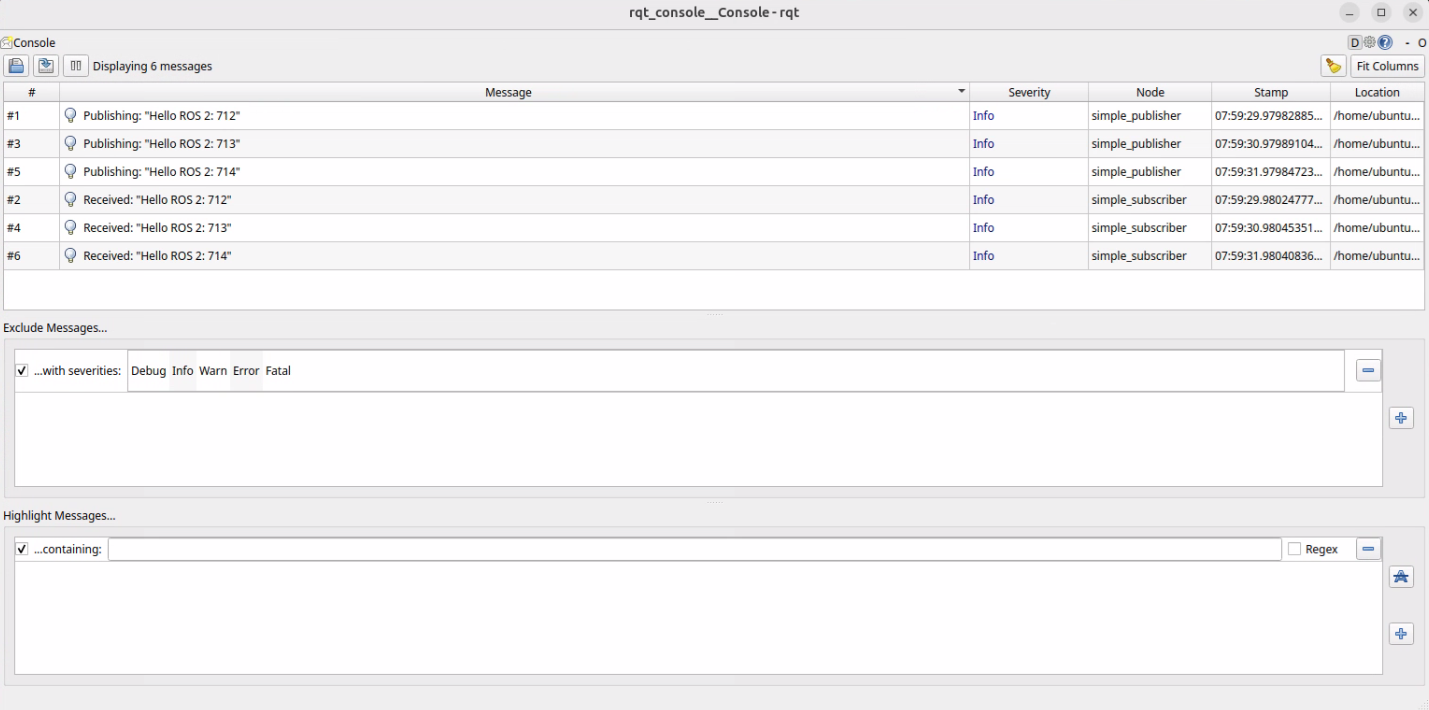
3. 查看 Log Message
你應該會看到來自以下 Node 的 Message:
/simple_publisher
/simple_subscriber
並看到類似以下內容:
Publishing: "Hello ROS 2: 0"
Received: "Hello ROS 2: 0"
4. 篩選輸出內容
使用 rqt_console 中的 Filter Control,減少畫面中顯示的 Message。
常見的 Filter 條件包括:
- Severity Level
- Node 或 Logger Name
- Message Content
例如,在大型系統中除錯時,可以只顯示 Warning 與 Error。
預期成果
當 Publisher/Subscriber 範例正在執行時,rqt_console 應該會顯示兩個 Node 所產生的 Log Message。
隨著新的 Message 被發布與接收,Console 中會持續出現新的 INFO Entry。
你也可以使用以下指令確認 /rosout 是否存在:
ros2 topic info /rosout
或直接查看結構化的 Log Message:
ros2 topic echo /rosout
常用指令
# Start rqt_console
ros2 run rqt_console rqt_console

# Confirm /rosout exists
ros2 topic list | grep rosout

# Inspect /rosout
ros2 topic info /rosout
ros2 topic echo /rosout

# Inspect a node
ros2 node info <node_name>

# Run a node with a selected log level
ros2 run <package> <executable> --ros-args --log-level debug
常見問題
- rqt_console 中沒有顯示任何 Message — 確認預期的 Node 正在執行,而且確實有輸出 ROS 2 Log Message。也要確認執行
rqt_console的 Terminal 使用相同的 ROS 2 環境與ROS_DOMAIN_ID。 - 看不到
/rosout— 該 Node 可能停用了/rosoutLogging,或 Node 本身沒有執行。可以使用ros2 topic list確認。 - Message 太多,畫面很難閱讀 — 使用 Severity、Node / Logger 或 Message Content Filter 縮小顯示範圍。
- 看不到 DEBUG Message — Node 當前有效的 Log Level 可能高於
DEBUG。如果需要更詳細的 Diagnostic Information,請以適當的 Log Level 啟動或設定 Node。 - Terminal 看得到 Message,但 rqt_console 中沒有 — 確認該輸出是 ROS 2 Logger 產生的 Message,而不是一般的
print()Output,同時確認/rosoutLogging 沒有被停用。
重點整理
rqt_console提供 ROS 2 Log Message 的圖形化檢視方式。- ROS 2 Log Message 通常會以結構化的
rcl_interfaces/msg/LogMessage 發布到/rosout。 - 透過 Severity、Node / Logger 與 Message Content 進行篩選,可以讓大型 ROS 2 系統更容易除錯。
rqt_console顯示的是 ROS 2 Logger Message;一般 Process Output,例如print(),不會自動成為/rosout的一部分。- 在除錯 Multi-node System 時,可以搭配 rqt_graph 與 Troubleshooting 一起使用。
下一步
接著前往 Gazebo 進行 Robot Simulation;如果 Log Message 顯示問題可能與 Communication、TF、Timing 或 Environment 有關,也可以回到 Troubleshooting 進一步排查。