Gazebo
Gazebo is a robotics simulator that provides physics, sensors, robot models, and 3D environments for testing robotic systems without requiring physical hardware.
This page focuses on the modern Gazebo Sim workflow used with ROS 2 through the ros_gz integration packages.
Overview
Gazebo and RViz2 serve different purposes:
- Gazebo simulates the robot, environment, physics, and sensors.
- RViz2 visualizes ROS 2 data produced by a real or simulated system.
A typical ROS 2 simulation workflow looks like this:
Gazebo Sim
   |
   | Gazebo Transport
   v
ros_gz_bridge
   |
   | ROS 2 topics
   v
ROS 2 nodes / RViz2
Gazebo can simulate camera images, depth images, LiDAR scans and point clouds, IMU data, robot motion, contacts, and collisions.
Why It Matters
Simulation allows you to test perception, navigation, manipulation, and control logic before connecting to physical hardware.
It is useful for:
- testing robotics algorithms
- validating robot models and sensors
- reproducing scenarios consistently
- developing without a physical robot
- running automated or regression tests
Simulation does not replace hardware validation, but it can reduce the amount of development that must be performed directly on the robot.
Core Concepts
Gazebo Sim and ROS 2
Modern Gazebo uses its own communication system, Gazebo Transport. ROS 2 nodes do not automatically receive Gazebo Transport messages.
The ros_gz packages provide the integration layer between the two systems. A commonly used component is ros_gz_bridge, which converts supported Gazebo message types to ROS 2 message types and vice versa.
Gazebo Classic vs. Modern Gazebo
Older ROS tutorials may refer to Gazebo Classic and packages such as:
gazebo_ros
This tutorial uses the modern Gazebo Sim architecture instead:
gz sim
ros_gz
ros_gz_bridge
Do not assume that Gazebo Classic instructions or plugins apply directly to modern Gazebo Sim.
URDF and SDF
ROS 2 robot descriptions commonly use URDF, while Gazebo's native simulation description format is SDF.
URDF is well suited for describing the robot's kinematic structure. Simulation-specific properties such as sensors, plugins, friction, and other physics settings may require additional Gazebo/SDF configuration.
See URDF Robot Model for the ROS 2 robot-description basics.
Simulation Time
A simulator advances its own simulation clock rather than relying only on wall-clock time.
When ROS 2 nodes should follow Gazebo simulation time:
- Gazebo simulation time must be made available to ROS 2, commonly through
/clock. - The ROS 2 nodes that should follow simulation time must have
use_sim_timeset totrue.
This is the same ROS 2 time mechanism discussed in Rosbag.
Installation
Install the ROS 2 integration packages for the ROS distribution used by your environment:
sudo apt update
sudo apt install ros-${ROS_DISTRO}-ros-gz
The compatible Gazebo release depends on the ROS 2 distribution and the packages available for the target platform.
Avoid hardcoding a Gazebo release from another ROS 2 distribution. If gz sim is not available after installing the ROS integration packages, install the Gazebo release paired with your ROS 2 distribution according to the official Gazebo/ROS compatibility documentation for that environment.
Version compatibility
Gazebo releases and ROS 2 distributions have specific compatibility pairings. Confirm the supported pairing for the Robotic Suite image or target platform before publishing platform-specific installation instructions.
Hands-on Steps
1. Start Gazebo
Launch Gazebo Sim:
gz sim
Depending on the installed Gazebo version, the startup interface may provide a world selection or launcher.
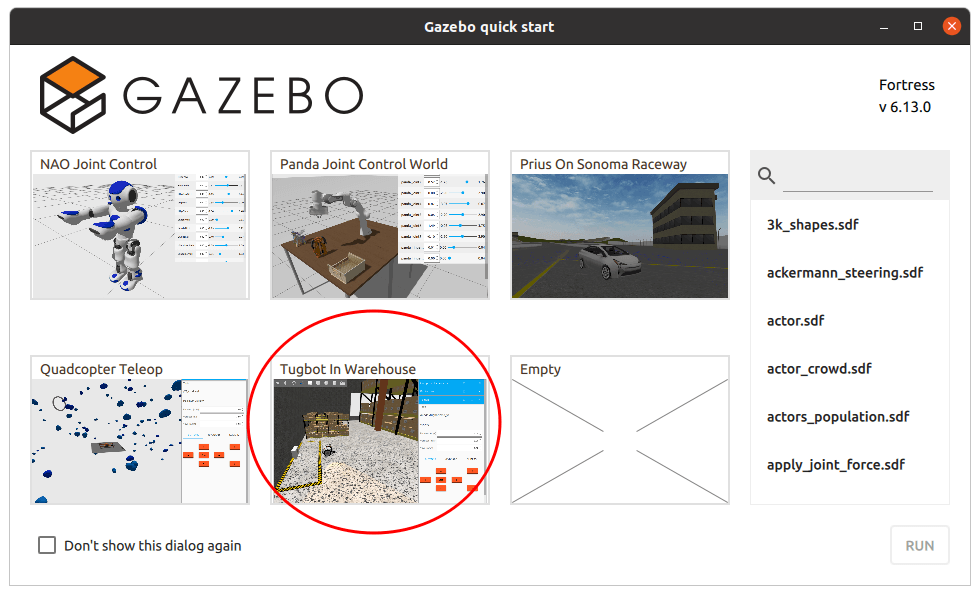
Choose an available example world and start the simulation.
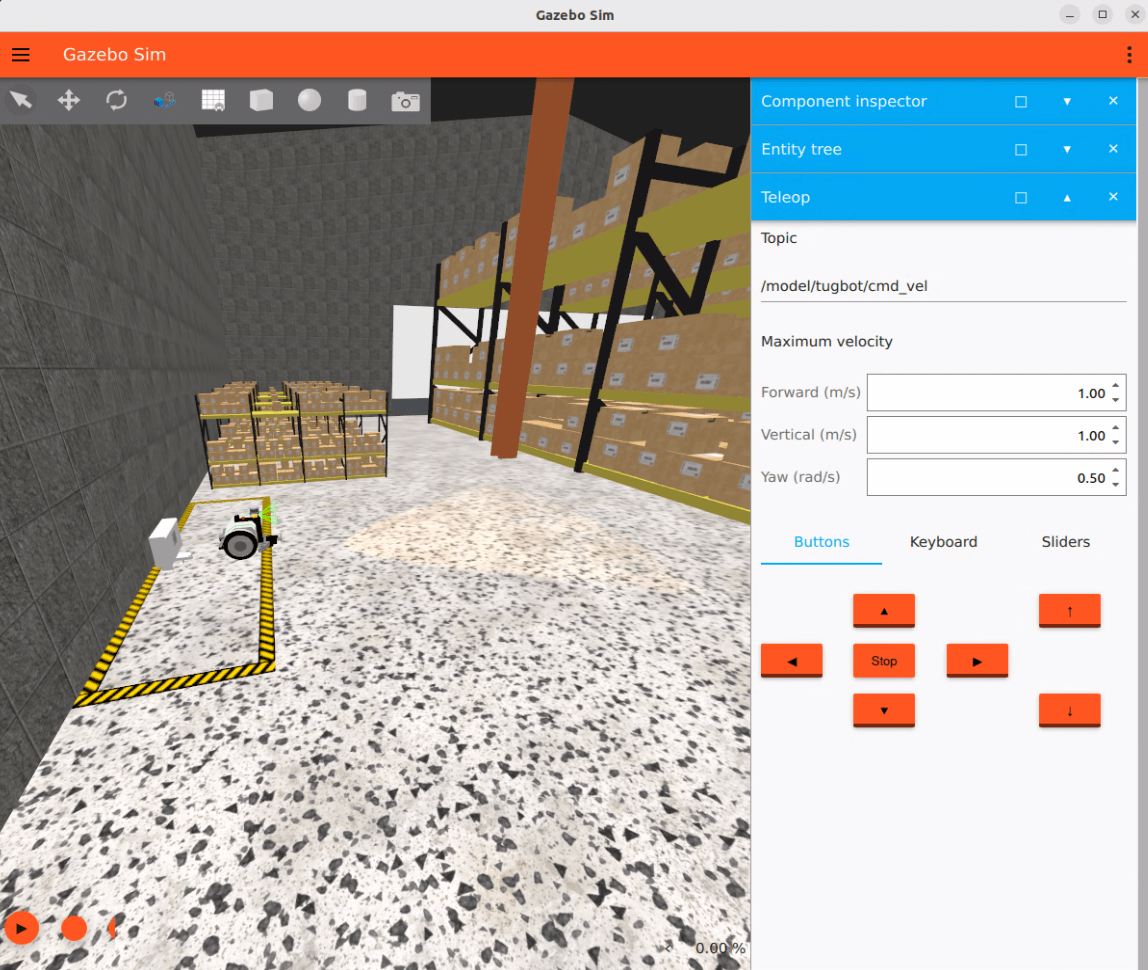
The exact worlds and user interface may differ between Gazebo releases.
2. Inspect Gazebo Topics
Gazebo Transport topics can be listed with:
gz topic -l
The exact topic names depend on the selected world, model, link, and sensor.
For example, sensor topics often include paths containing:
/world/<world_name>/model/<model_name>/link/<link_name>/sensor/<sensor_name>/...
Do not assume that a topic path from one example world will exist in another.
3. Bridge Gazebo Data to ROS 2
ros_gz_bridge can create bridges between Gazebo Transport and ROS 2.
The general form for a Gazebo-to-ROS bridge is:
ros2 run ros_gz_bridge parameter_bridge <topic>@<ros_message_type>[<gz_message_type>
For example, a Gazebo image topic can be bridged using a command of the form:
ros2 run ros_gz_bridge parameter_bridge /world/<world>/model/<model>/link/<link>/sensor/<camera>/image@sensor_msgs/msg/Image[gz.msgs.Image
A Gazebo point-cloud topic can use a bridge of the form:
ros2 run ros_gz_bridge parameter_bridge /world/<world>/model/<model>/link/<link>/sensor/<sensor>/points@sensor_msgs/msg/PointCloud2[gz.msgs.PointCloudPacked
Replace the example paths with topics reported by:
gz topic -l
4. Confirm the ROS 2 Topics
After starting a bridge, inspect the ROS 2 graph:
ros2 topic list
Then inspect the bridged topic:
ros2 topic info <topic_name> -v
For an image topic:
ros2 topic echo <topic_name> --once
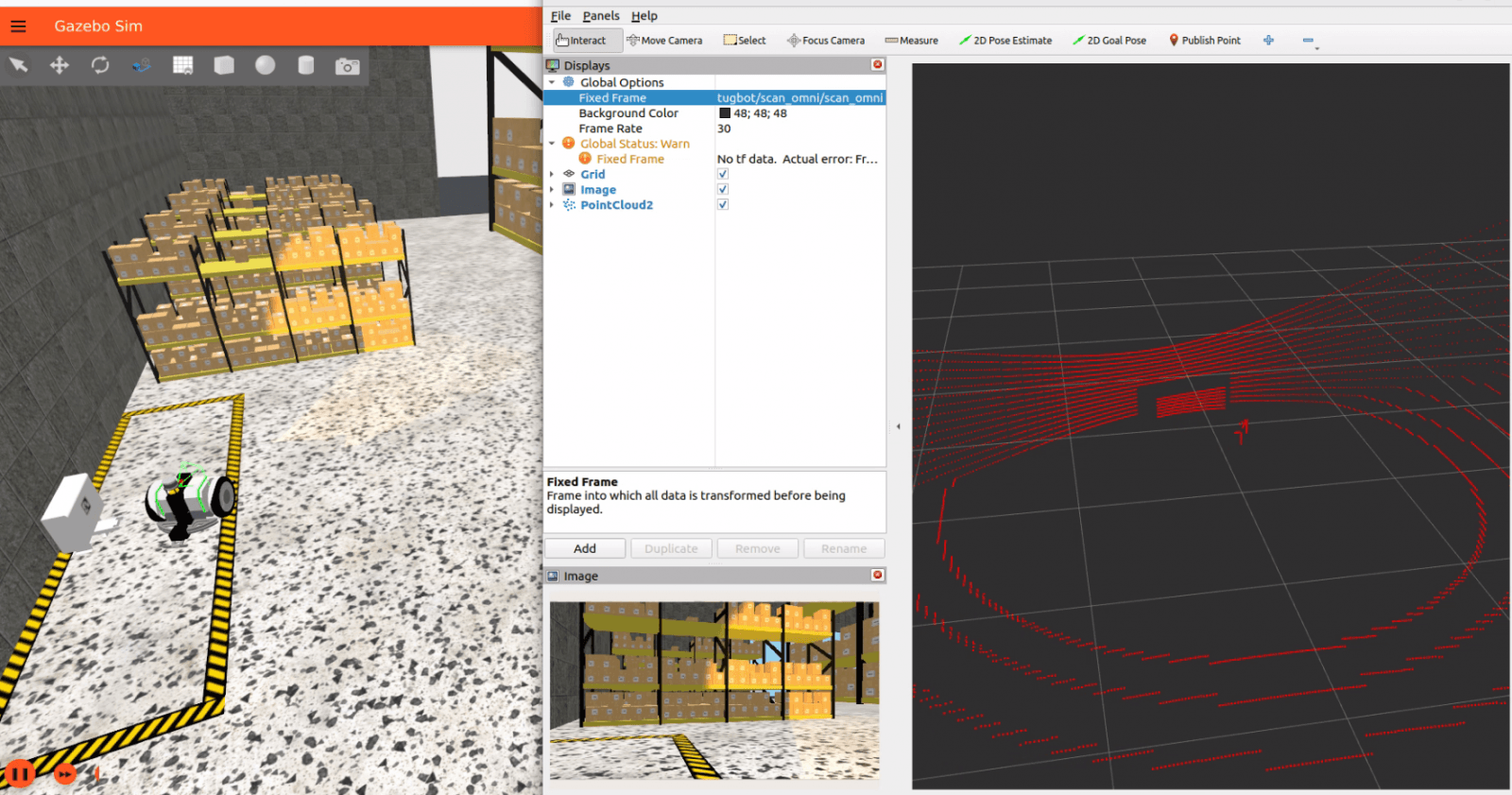
For high-bandwidth sensor data such as images or point clouds, RViz2 is usually more useful than continuously printing messages in the terminal.
5. Visualize Bridged Data in RViz2
Start RViz2:
ros2 run rviz2 rviz2
Add the appropriate display, such as:
- Image
- PointCloud2
- LaserScan
- TF
and select the ROS 2 topic created by the bridge.
See RViz2 for the visualization workflow.
6. Use Simulation Time When Required
If ROS 2 nodes should use Gazebo's simulation clock, bridge or otherwise expose the simulation /clock topic to ROS 2 and enable simulated time on the consuming nodes.
A /clock bridge can be created with:
ros2 run ros_gz_bridge parameter_bridge /clock@rosgraph_msgs/msg/Clock[gz.msgs.Clock
Then enable simulated time on a running ROS 2 node:
ros2 param set <node_name> use_sim_time true
Whether /clock already exists on the ROS 2 side depends on how the simulation was launched and integrated, so check before creating an additional bridge:
ros2 topic list | grep clock
Expected Result
After starting Gazebo and the required bridges:
- Gazebo runs the selected world and simulated sensors.
gz topic -lshows Gazebo Transport topics.ros2 topic listshows the bridged ROS 2 topics.- ROS 2 tools can inspect the bridged messages.
- RViz2 can visualize supported simulated sensor data.
- Nodes using
use_sim_time=truefollow simulation time when/clockis available.
Useful Commands
# Start Gazebo Sim
gz sim

# List Gazebo Transport topics
gz topic -l

# Inspect Gazebo CLI help
gz sim --help
gz topic --help

# Start a Gazebo-to-ROS bridge
ros2 run ros_gz_bridge parameter_bridge   <topic>@<ros_message_type>[<gz_message_type>

# Inspect ROS 2 topics
ros2 topic list
ros2 topic info <topic_name> -v

# Start RViz2
ros2 run rviz2 rviz2

# Check simulated time
ros2 topic list | grep clock
ros2 param get <node_name> use_sim_time
Common Problems
gz: command not found— the compatible Gazebo runtime is not installed or is not available in the current environment. Confirm the Gazebo/ROS 2 pairing supported by the target platform.ros_gz_bridgepackage not found — install the ROS integration package for the active ROS 2 distribution and confirm that the ROS environment is sourced.- A bridge starts but no ROS 2 data appears — verify the Gazebo topic name with
gz topic -land confirm that the Gazebo and ROS message types in the bridge command are correct. - The example topic path does not exist — topic paths depend on the selected world, model, link, and sensor. Use
gz topic -lrather than copying a path from another world. - RViz2 receives data but reports TF errors — the sensor message frame is not connected to the selected RViz2 Fixed Frame. Inspect the TF tree with the tools described in TF2.
- ROS 2 timers or TF behave incorrectly during simulation — confirm that
/clockis available and that every node that should follow simulation time hasuse_sim_time=true. - Performance is poor — complex worlds, high-resolution cameras, point clouds, and physics settings can require significant CPU and GPU resources. Reduce simulation complexity or sensor update rates when necessary.
Downloading Worlds and Models
Additional Gazebo worlds and models are available through Gazebo Fuel:
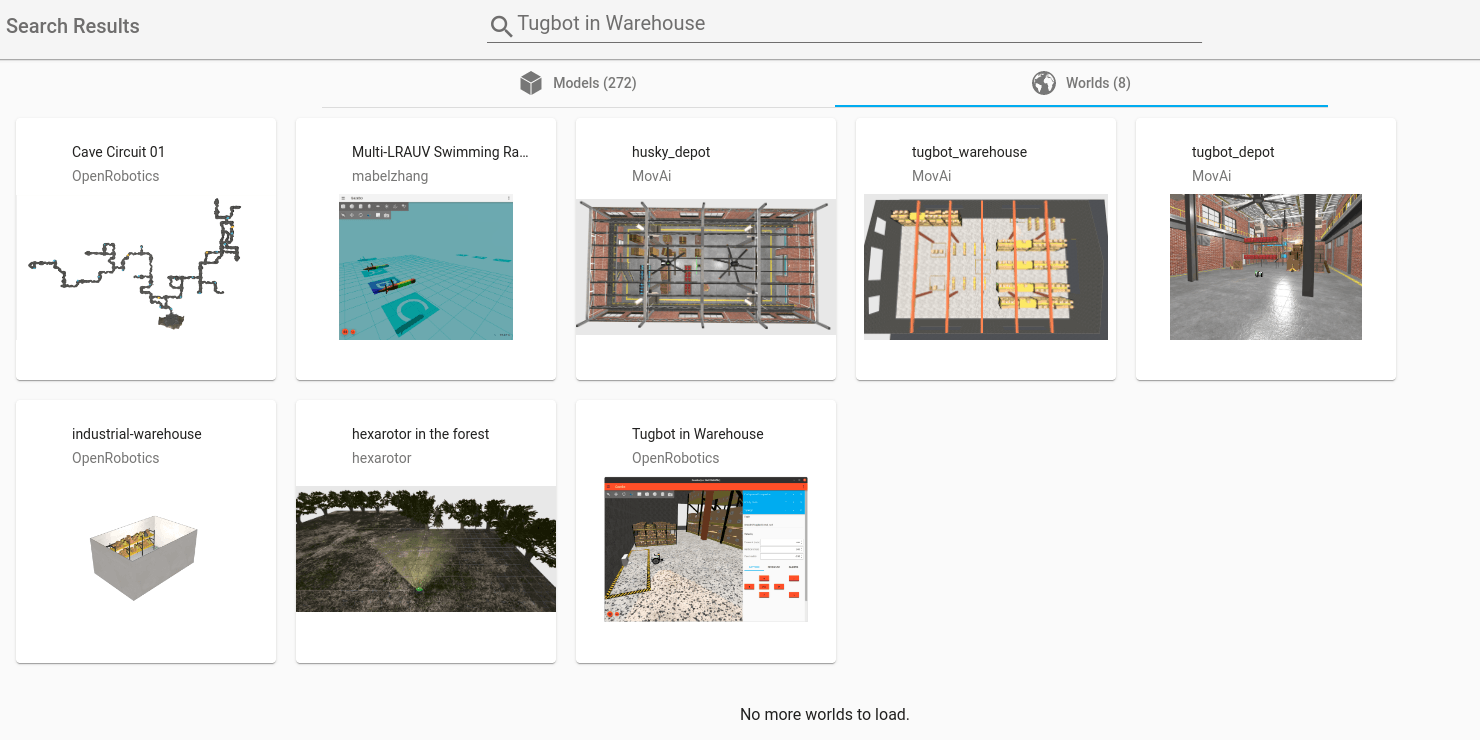
Available content and the Fuel user interface may vary over time and by Gazebo release.
Key Takeaways
- Gazebo simulates robot physics, sensors, and environments; RViz2 visualizes ROS 2 data.
- Modern Gazebo integrates with ROS 2 through the
ros_gzpackages rather than the older Gazebo Classicgazebo_rosworkflow. ros_gz_bridgeconverts supported Gazebo Transport messages to and from ROS 2 messages.- Gazebo topic names depend on the selected simulation world and model, so inspect them instead of hardcoding example paths.
- Use
/clockanduse_sim_time=truewhen ROS 2 nodes must follow simulation time. - Match the Gazebo release to the ROS 2 distribution and target Robotic Suite environment rather than assuming a fixed Gazebo version.
Next
Return to the ROS 2 learning map, or continue with RViz2, TF2, and URDF Robot Model when building or debugging a simulated robot system.