Camera Setup & Management
Scope of camera support
The platform's vision subsystem adopts an open design: any camera capable of outputting a standard image stream may be used, including general-purpose USB webcams and Intel RealSense units providing depth information. No vendor restriction applies.
This design reflects the determining factor in data quality: model performance is governed by whether the viewpoint covers the critical information, not by the specification of the image sensor.
Camera management
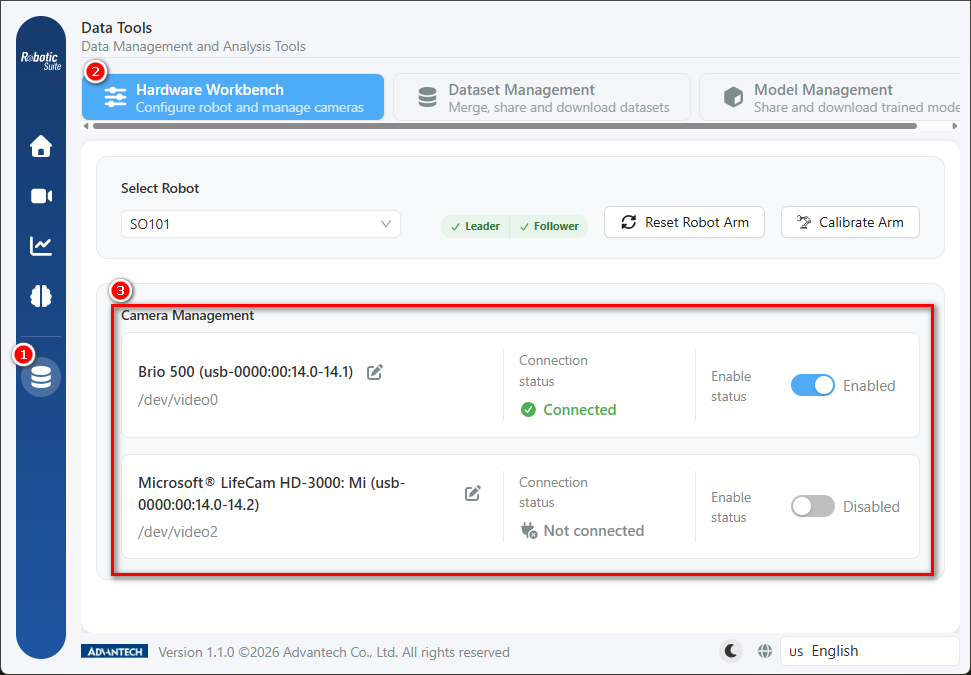
Management is located at Data Tools (①) → Hardware Settings (②) → Camera Management (③). Each camera occupies one row, with its device node indicated beneath the name (for example /dev/video0), and three operations are provided:
| Operation | Description |
|---|---|
| Connection status | Indicates connected, connection error, or not connected; the starting point for troubleshooting |
| Enable toggle | Cameras that are not enabled are not recorded into the dataset |
| Display name editing | Via the pencil icon to the right of the name, changes the generic identifier assigned on detection into an identifiable name |
The two rows in the figure above illustrate the two states: the upper camera is "Connected" and enabled, while the lower one is "Not connected" and disabled. Connection status and enable status are independent of one another — where a camera is connected normally but its toggle is off, that image is likewise excluded from the dataset, and no anomaly is reported on screen. Both should be confirmed before recording.
If the list displays "No cameras detected", it must be confirmed that ROS is connected and that the camera devices are correctly mounted. Under containerised deployment, a camera that is physically connected but not correctly mounted into the container is a common cause of this condition.
Recommended initial configuration
| Viewpoint | Purpose |
|---|---|
| Wrist | Moves with the gripper, providing close-range detail of gripper-object contact |
| Top | Views from above, covering the overall work area and object positions |
This two-camera configuration provides one near and one distant view, one moving and one fixed, and covers the information required by most pick-and-place tasks. Where a task presents additional requirements — for example, where the workpiece is frequently occluded by the arm itself, or where additional depth cues are required — a further viewpoint may be added.
The placement principles for viewpoints and the criteria for adding a third camera are described in Physical Demonstration Recording.
Configuring display names
The initial camera names obtained on detection are the model and bus identifier reported by the device itself (such as Brio 500 (usb-0000:00:14.0-14.1) in the figure above). Such a name states what the device is but not where it is mounted, and that correspondence is known only to the operator. Following camera connection, the display names should therefore be edited to match the actual mounting positions — for example, "Wrist" and "Top".
This setting serves two substantive purposes: under a multi-camera configuration, the name is the only means of distinguishing the individual feeds on the recording screen; and when the dataset is reviewed subsequently, the name is the only indication of each feed's origin.
Procedure
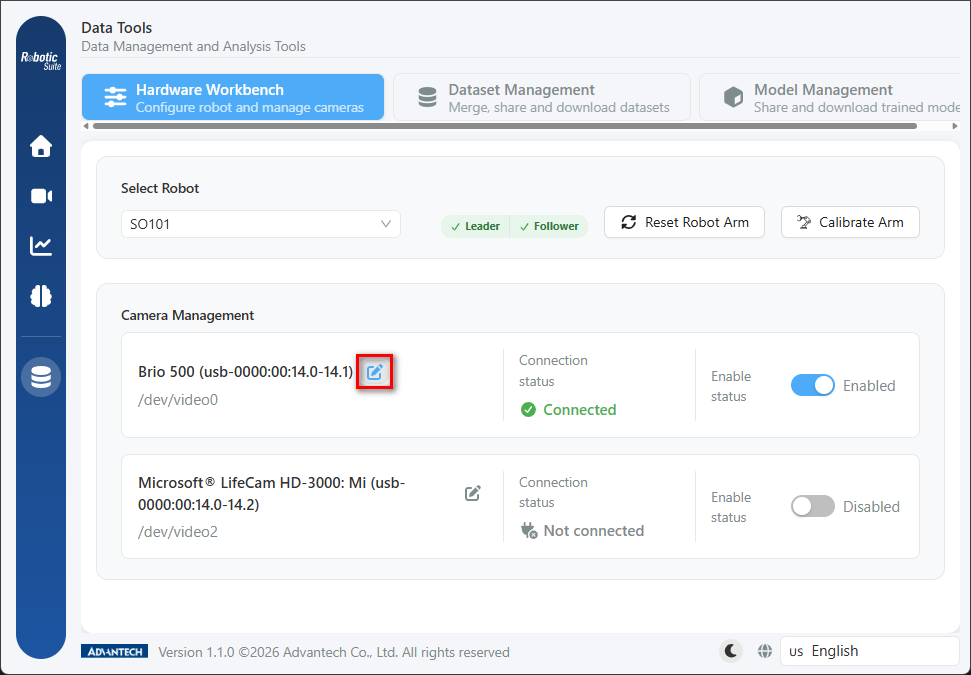
Click the pencil icon to the right of the camera name:
The name becomes an editable field; enter the new name and confirm with the green check, or cancel with the cross:
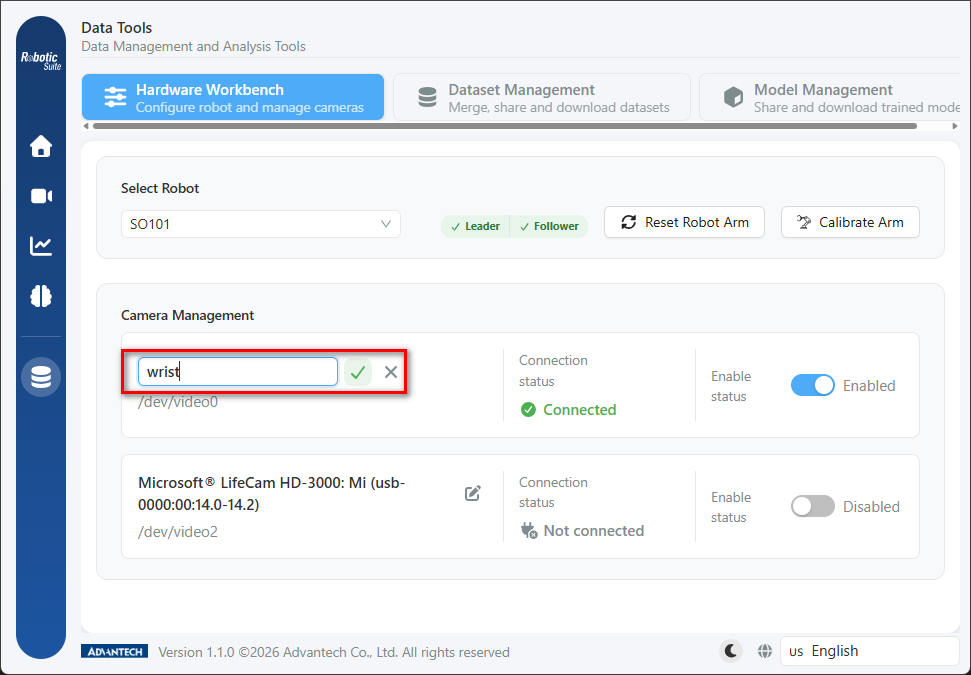
The device node beneath the name (such as /dev/video0) is unaffected by renaming. That node is what the system uses to identify the camera; the display name is solely a label for human recognition.
Completion criteria for this stage
On completion of this chapter, it should be confirmed that the wrist and top cameras are both connected, show a connected status, and are enabled, and that their display names correspond to their actual positions. The wrist viewpoint supplies contact detail and the top viewpoint supplies global position; absent either, the model has difficulty determining the actual position of the object.
Next: Policy selection.