Quickly Configure GMSL Camera Drivers and Related Features with Advantech GMSL Camera configuration
The submitted guide presents Advantech GMSL Camera configuration (adv-cam) as a configuration layer for the eight GMSL connectors on the Advantech ASR702. It quickly configures GMSL camera drivers and related features: instead of manually coordinating device-tree entries, I²C addresses, MIPI routing, and boot-time driver selection, an operator records which supported camera is connected to each channel. The tool then generates the corresponding configuration.
The source scope is:
| Item | Source-stated value |
|---|---|
| Platform | Advantech ASR702 |
| Processor platform | NVIDIA Jetson AGX Thor |
| Software stack | JetPack 7.2 / L4T R39.2 |
| Package | advantech-adv-max96712 2.13-10 |
| Tool version | adv-cam 2.13-10 |
| Camera connectors | CH1–CH8 |
These values describe the submitted environment, not a universal compatibility statement.
Why centralized camera configuration helps
A multi-camera GMSL system has constraints above the level of a single camera. Channel assignments affect serializer/deserializer links, available stream pipes, MIPI-port rates, synchronization, and which ROS 2 nodes should start. adv-cam brings those decisions into one model and provides three interfaces that write the same configuration:
| Interface | Command | Best suited to |
|---|---|---|
| Graphical interface | sudo adv-cam | Local setup with a display |
| Text interface | sudo adv-cam --tui | SSH or serial-console setup |
| Command line | sudo adv-cam CH1=d457 … | Scripts, factory provisioning, and remote batch setup |
The benefits are repeatability and earlier validation: the desired physical topology can be reviewed before it is converted into low-level settings.
Detect, map, and validate the cameras
The CAMERA CONNECTION page maps CH1–CH4 and CH5–CH8 to camera profiles. An unused connector should be set to None. When the window opens, the guide says detection takes about 20 seconds. RE-SCAN repeats the query, while Auto Apply or APPLY DETECTED can copy detected results into the selectors.
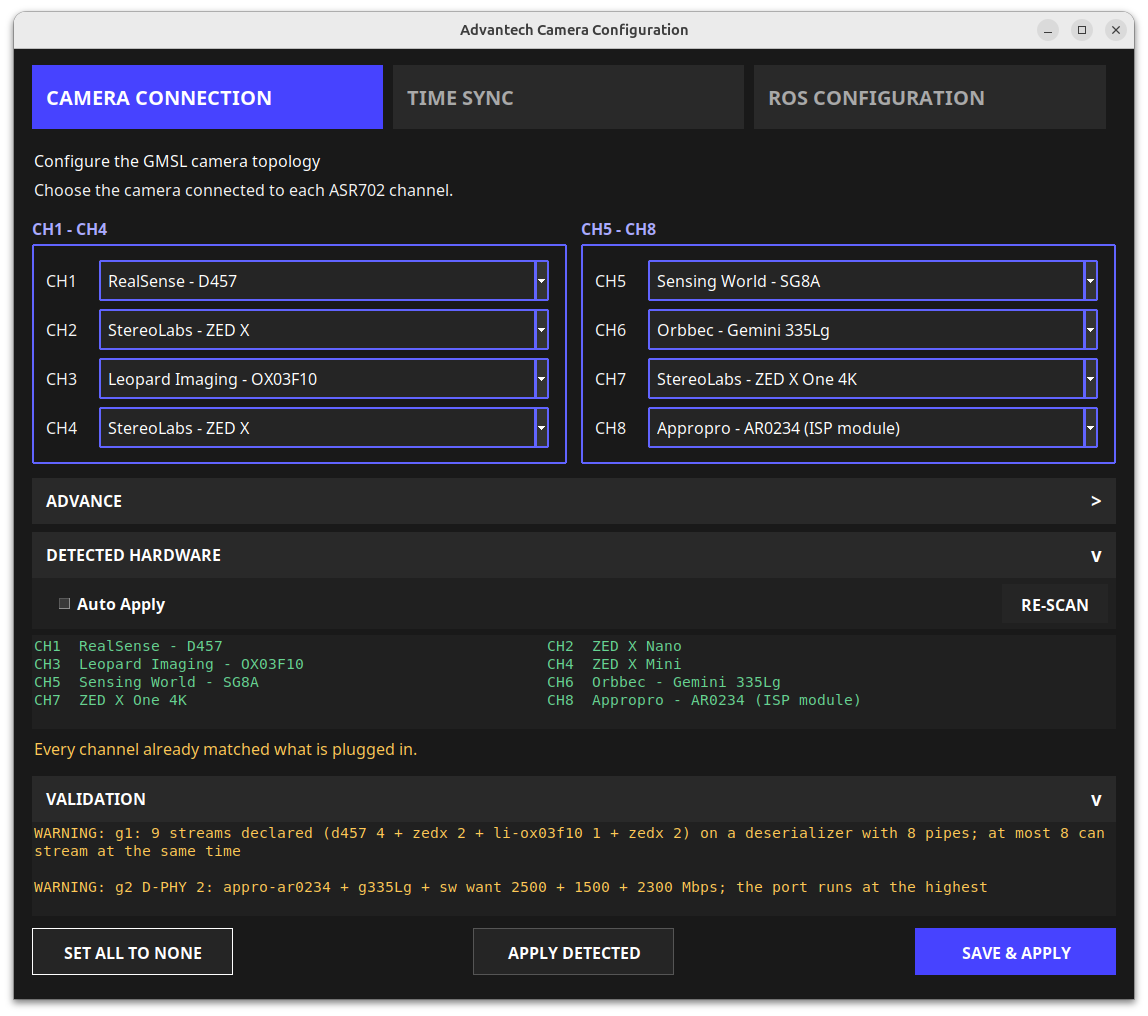
Figure 1. The Camera Connection page combines channel mapping, hardware discovery, and pre-apply validation.
Detection can use more than a generic profile name. In the submitted example, StereoLabs EEPROM data distinguishes ZED X Nano and ZED X Mini devices even though both use the zedx configuration family. The summary can report that every saved channel matches the connected hardware.
Validation also exposes system-level limits. The submitted screen warns that:
- one deserializer has nine declared streams but only eight pipes, so no more than eight can stream simultaneously; and
- cameras sharing one D-PHY/MIPI port request different rates, so the port runs at the highest requested rate.
This is a major advantage over editing configuration fragments independently: oversubscription and shared-link effects are visible before deployment.
Configure shared image synchronization
The TIME SYNC page controls a trigger pulse shared by both MAX96712 deserializers and all eight channels. With Trigger frequency set to off, cameras free-run. Selecting a frequency configures one system-wide pulse.
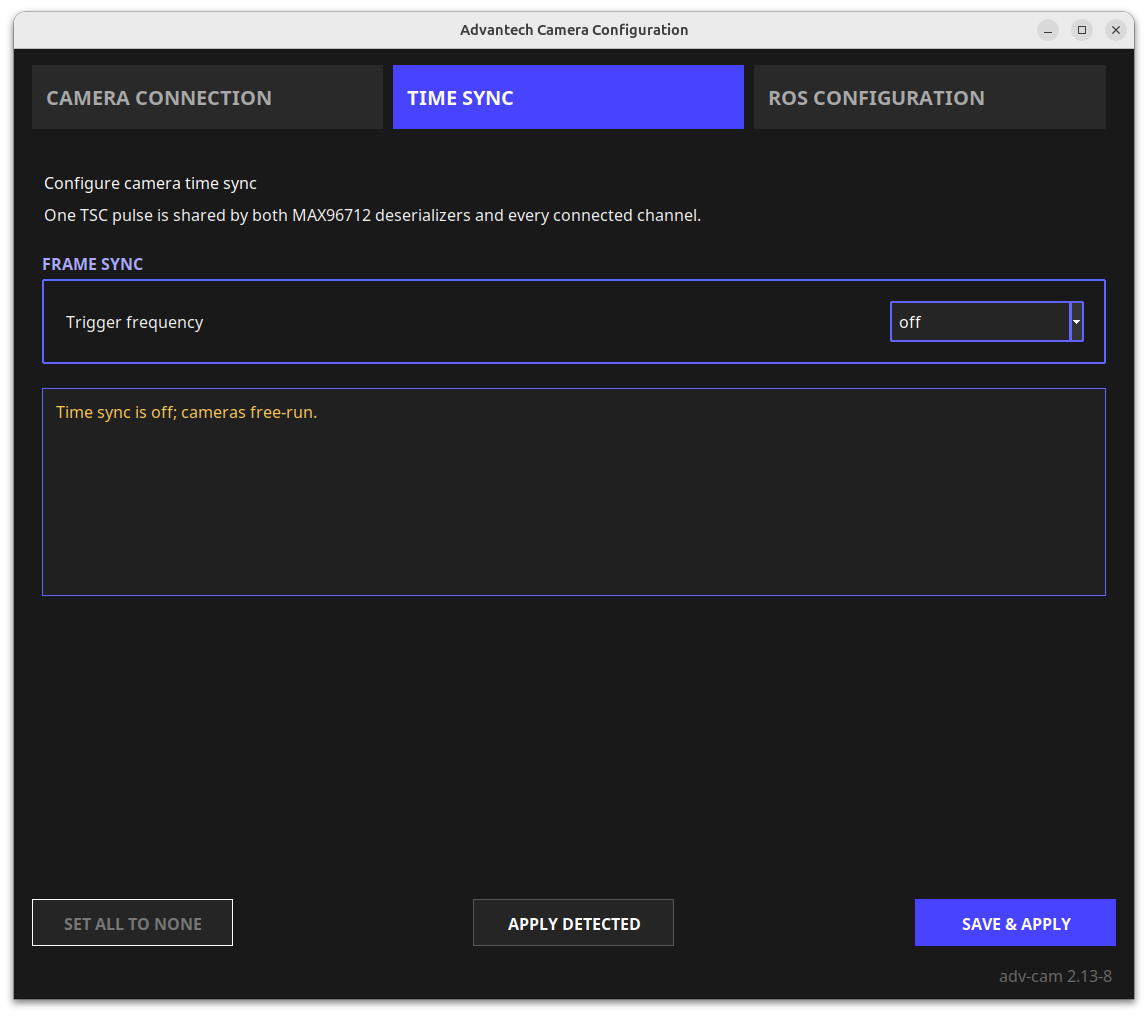
Figure 2. Time Sync reports the current shared-trigger state; the submitted screen shows free-running cameras.
The guide distinguishes two controls:
- the TIME SYNC page determines whether the SoC generates a pulse; and
adv-cam-fsyncdetermines whether the camera follows that pulse.
Both sides must be configured for synchronized exposure. The source gives this camera-side example:
sudo adv-cam-fsync on
Do not assume every camera or driver supports the same trigger mode. Confirm electrical timing, exposure behavior, and the selected frequency on the target hardware.
Manage ROS 2 startup from the same topology
The ROS CONFIGURATION page lists configured camera models, channels, and START AT BOOT controls. The switches default to DISABLED; enabling one requests that camera's ROS 2 node start after the next boot.
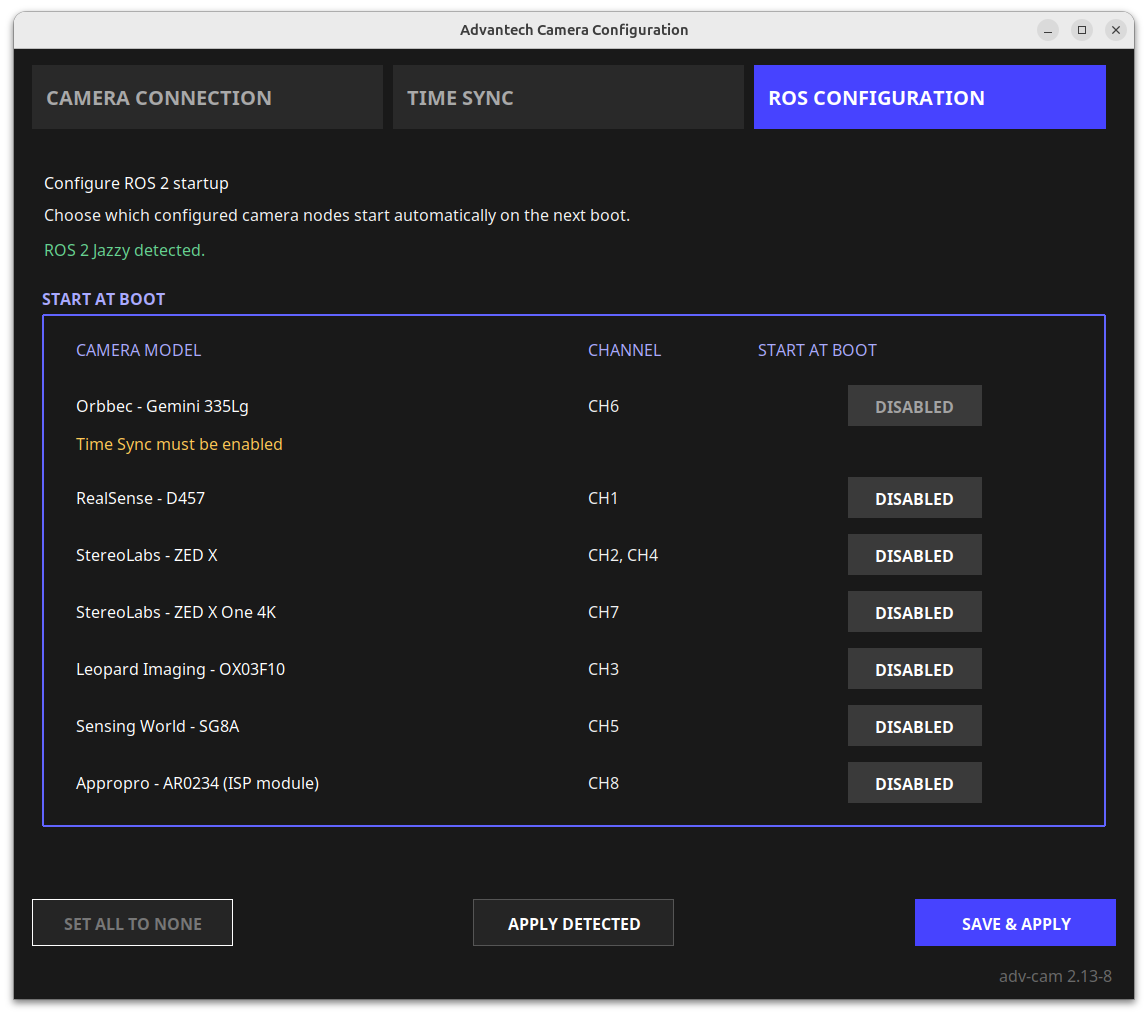
Figure 3. ROS startup choices stay associated with the camera/channel mapping instead of being maintained separately.
The submitted screen reports ROS 2 Jazzy detected. The guide also states:
- Orbbec Gemini 335Lg requires TIME SYNC before its ROS driver outputs images; and
- when ROS 2 Jazzy is not installed, the rows remain disabled. That state indicates an unavailable ROS environment rather than a camera-detection error.
Apply configuration safely
APPLY DETECTED only fills the selectors. It does not save the result. To commit a reviewed configuration, use SAVE & APPLY and confirm the dialog. The tool then generates and stores the device-tree configuration and asks whether to reboot.
- Yes: reboot immediately so the new configuration can take effect.
- No: save the configuration and reboot later.
The guide notes one exception: after upgrading from a release earlier than 2.13-4, or when switching from another camera driver that cannot reset the cameras during reboot, the first transition may require a complete power-off of about 30 seconds. Later changes are described as requiring only a normal reboot. Validate this behavior against the installed release before interrupting a production system.
Headless and automated workflows
The TUI provides keyboard-only setup:
↑/↓: move between channels;←/→: select a camera profile;N: set the selected channel to none;F10orS: save and apply; andEscorQ: exit without saving.
The CLI exposes the same model:
sudo adv-cam --show
sudo adv-cam --detect
sudo adv-cam CH1=d457 CH2=zedx CH6=g335Lg
sudo adv-cam CH1=d457 CH6=g335Lg FSYNC=15
:::caution Commands describe a complete channel set
The source says channels omitted from a channel-assignment command are treated as none. Review the complete command before applying it; an omitted active channel may be disabled.
:::
Supported tokens listed by the source include:
| Token | Camera profile |
|---|---|
d457 | RealSense D457 |
g335Lg | Orbbec Gemini 335Lg |
zedx | StereoLabs ZED X / Mini / Nano |
zedxone | StereoLabs ZED X One (GS) |
zedxone4k | StereoLabs ZED X One 4K |
li-isx031 | Leopard Imaging ISX031 |
li-ox03f10 | Leopard Imaging OX03F10 |
appro-ar0234 | Appropho AR0234 ISP module |
sw | Sensing World SG8A |
none | No camera connected |
--detect may report serializer addresses, IDs, EEPROM model/serial information, link-rate mismatches, and a proposed full configuration command. Treat the final line as a reviewable starting point rather than executing it blindly.
Practical first-time workflow
The source proposes this sequence for a new system:
sudo apt install ./advantech-adv-max96712_<version>_arm64.deb
sudo reboot
sudo adv-cam
Use apt, not only dpkg -i, so dependencies can be resolved. In the GUI, wait for detection, review the detected hardware and warnings, use APPLY DETECTED, then SAVE & APPLY. After reboot, verify that expected video nodes exist:
v4l2-ctl --list-devices
v4l2-ctl -d /dev/video0 --stream-mmap --stream-count=30 --stream-to=/dev/null
Confirm the actual /dev/video* node before testing. A successful command alone is not sufficient: verify received frames, camera identity, synchronization where required, and ROS startup behavior.
Limits and cautions
- Each deserializer can carry at most eight simultaneous streams according to the source. D457 and Gemini 335Lg each consume four; ZED X consumes two.
- Changes do not take effect until reboot.
- Cameras sharing a MIPI port use the highest requested rate.
- Sensing World (
sw) is described as test support only. - Hardware detection becomes read-only while a process is actively streaming from
/dev/video*; close that process and scan again for full identification. - Package versions, supported models, and reset behavior can change. Use the installed tool's help and release documentation as the authority.