Object Detection on ASR-D501 with MIPI Camera
This guide demonstrates how to build an object detection pipeline using a MIPI camera (IMX577) on the ASR-D501.
Overview
- Model Optimization & NPU Acceleration: Use Qualcomm AI Hub to export a YOLO object detection model tailored specifically for the QCS6490 chipset. This seamless deployment enables the device to run high-speed, hardware-accelerated inference directly on its NPU.
- MIPI Camera Integration: Utilize GStreamer to efficiently access and test the MIPI camera stream directly on the edge device.
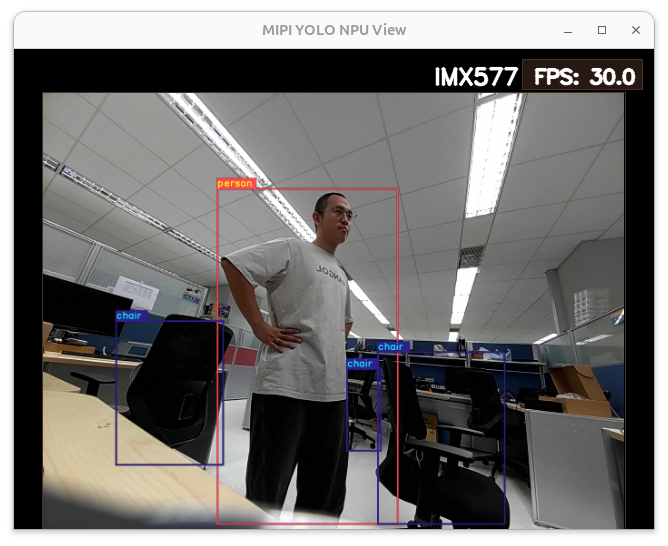
- Real-time Inference: A pipeline that performs object detection on live video feeds directly from the MIPI camera.
System Requirements and Components
| Component | Specification |
|---|---|
| Platform | ASR-D501 (Qualcomm QCS6490) |
| OS Image | ASRD501A1-Ubuntu24.04-x07_v1.0.0 |
| MIPI Camera | Thundercomm IMX577 |
| Model | YOLOv8-Detection (from Qualcomm AI Hub Models) |
Workflow
- Step 1: Refer to the Downloading Qualcomm AI Hub Models guide for model acquisition
- Step 2: Connect and test the MIPI camera via GStreamer
- Step 3: Download the Python file and run live inference
Step 1: Refer to the Downloading Qualcomm AI Hub Models guide for model acquisition
Please refer to the Downloading Qualcomm AI Hub Models to obtain the object detection model. Follow the instructions there to export the YOLO model for the QCS6490 chipset.
Step 2: Connect and test the MIPI camera via GStreamer
Ensure your IMX577 MIPI camera is properly connected to the ASR-D501 platform.
According to the BSP settings, the ASR-D501 supports specific camera connector mappings. The IMX577 sensor must be connected to either CAM1 or CAM2. Connecting it to CAM3, CAM4, or CAM5 is not supported.
For more information, please refer to ASR-D501 User Guide ↗
Before running the inference script, you can verify that the system detects the MIPI camera hardware and correctly outputs the video stream by using a simple GStreamer command.
Run the following command in your terminal:
gst-launch-1.0 -v qtiqmmfsrc name=camsrc camera=0 ! autovideosink
If the camera is configured correctly, a window will pop up showing the live stream from the MIPI camera. Once you have confirmed the hardware connection is successful, you can close the stream and proceed to the next step.
Step 3: Download the Python file and run live inference
For this demo, we will use the Python script to perform object detection.
Please use the link below to download the code and place it in the same directory as your exported model:
📥 Download IMX577_demo.py
Once downloaded, open a terminal on your device and run the following command to inference:
python3 IMX577_demo.py
You should now see a window displaying the real-time video stream with bounding boxes detecting objects directly from your MIPI camera!