Downloading Qualcomm AI Hub Models
This guide demonstrates how to download and export a YOLO object detection model tailored specifically for the QCS6490 chipset using Qualcomm AI Hub.
Overview
Qualcomm AI Hub is a centralized model repository and optimization service designed to streamline the deployment of AI models onto Qualcomm-powered edge devices. It provides several key advantages that simplify the AI deployment process:
- Pre-Optimized AI Models: Access a wide library of production-ready models (such as YOLO, MobileNet, and ResNet) tuned specifically for Qualcomm architectures.
- Hardware Acceleration (NPU/GPU/CPU): Easily compile and quantize models into formats like ONNX, TFLite, or Qualcomm AI Runtime, ensuring full utilization of on-chip AI accelerators.
- Faster Time-to-Market: Eliminates the complexity of manual model quantization and hardware-specific kernel tuning for embedded developers.
System Requirements and Components
| Component | Specification |
|---|---|
| Platform | ASR-D501 (Qualcomm QCS6490) |
| OS Image | ASRD501A1-Ubuntu24.04-x07_v1.0.0 |
| Model | YOLOv8-Detection (from Qualcomm AI Hub Models) |
Workflow
- Step 1: Select a QCS6490-compatible model from Qualcomm AI Hub
- Step 2: Prepare an isolated Python environment
- Step 3: Install the model package
- Step 4: Authenticate for Qualcomm AI Hub Workbench
- Step 5: Export model for QCS6490
Step 1: Select a QCS6490-compatible model from Qualcomm AI Hub
Open the Qualcomm AI Hub model catalog ↗, filter by Qualcomm Dragonwing™ QCS6490.
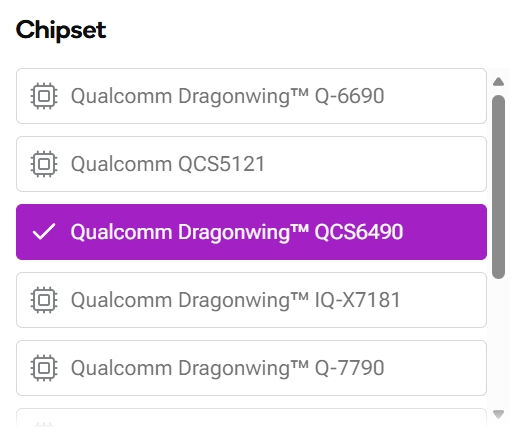
Select the model you want to run on your device. In this example, we choose YOLOv8-Detection ↗.
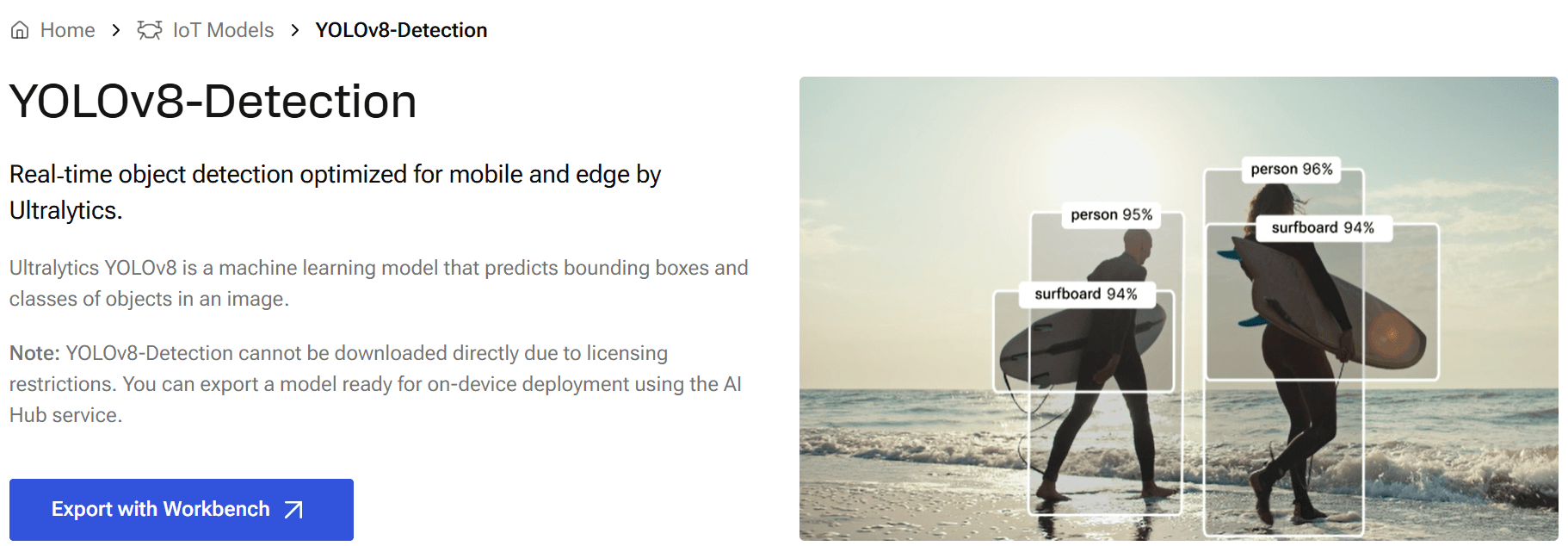
For export and runtime details, consult the YOLOv8-Detection source and documentation (GitHub) ↗.
Step 2: Prepare an isolated Python environment
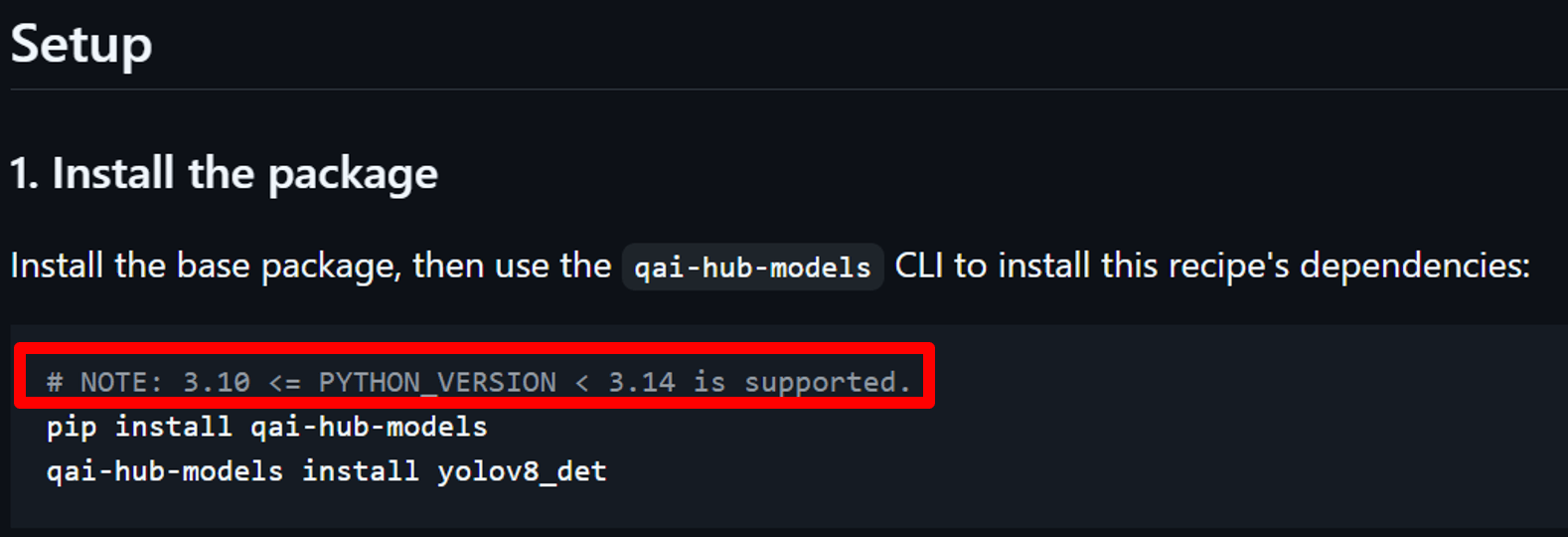
Confirm that your Python version is supported by the selected qai-hub-models release.
You can check the supported Python versions on the GitHub page.
Create and activate a Python virtual environment to keep dependencies isolated
from the system Python.
Replace <venv_name> with your desired environment name:
sudo apt update
sudo apt install python3-venv
python3 -m venv <venv_name>
source <venv_name>/bin/activate
Step 3: Install the model package
Install qai-hub-models package and the YOLOv8-Detection model in your Python virtual environment:
pip install qai-hub-models==0.61.0
qai-hub-models install yolov8_det
Run the demo application with W8A8 quantization before exporting:
python3 -m qai_hub_models.models.yolov8_det.demo --quantize w8a8
The Demo Result is shown below.
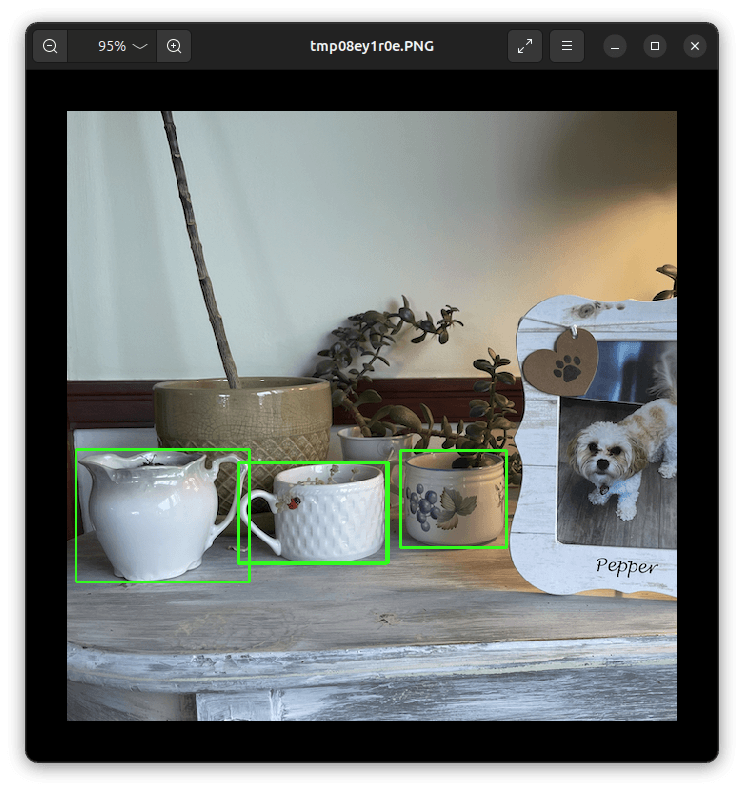
A successful demo confirms that the model and its dependencies are installed correctly before exporting.
Step 4: Authenticate for Qualcomm AI Hub Workbench
Create a Qualcomm AI Hub Workbench account ↗, and get your API token from Account → Settings → API Token.
Configure the <API_TOKEN> obtained from the Qualcomm AI Hub Workbench account:
qai-hub configure --api_token <API_TOKEN>
Note: Treat <API_TOKEN> as a secret. Do not share it publicly, post it online, or include it in any screenshots.
Step 5: Export model for QCS6490
Before exporting the model, you can list the options supported by the model you choose with the command below:
qai-hub-models export yolov8_det --help
Export a TensorFlow Lite (TFLite) model with 8-bit weights and 8-bit activations:
qai-hub-models export yolov8_det \
  --target-runtime tflite \
  --quantize w8a8 \
  --chipset qcs6490
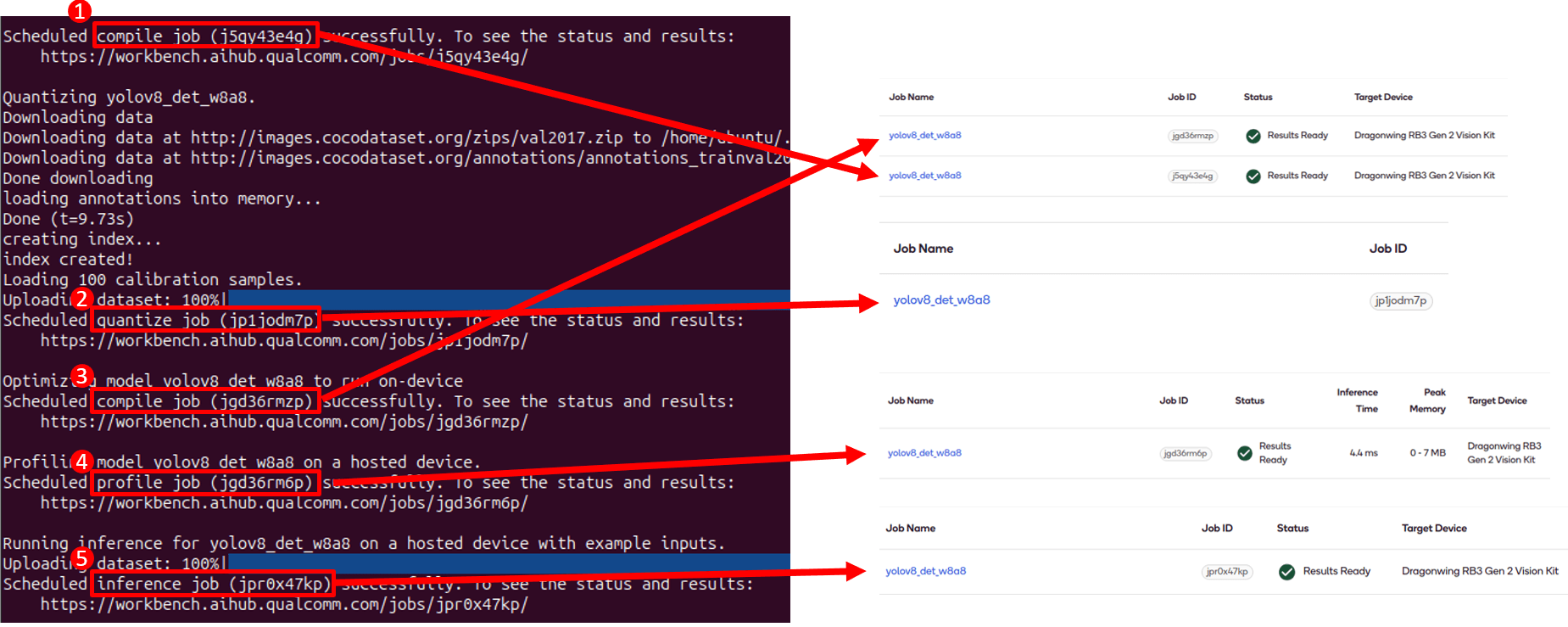
In this example, the export pipeline is:
| Step | Stage | Action & Format | Description |
|---|---|---|---|
| 01 | Initial Compile | PyTorch (.pt) → ONNX | Converts the original PyTorch model into ONNX format. |
| 02 | Quantization | W8A8 | Applies W8A8 quantization to compress the model weights and activations. |
| 03 | Target Compile | Quantized ONNX → TFLite | Compiles the quantized model into the target runtime (.tflite). |
| 04 | Profiling | Device Benchmark | Measures latency and memory consumption on the physical device. |
| 05 | Inference | Real-world Validation | Executes test inference with sample inputs. |
Export jobs and their individual stages can be reviewed in Qualcomm AI Hub Workbench.
Qualcomm AI Hub Workbench views used to inspect the submitted model-export jobs and stage results.
After the process is complete,
the outputs will be located in the ./export_assets/yolov8_det-tflite-w8a8 folder.
Once the model export is complete, you can safely exit the virtual environment:
deactivate